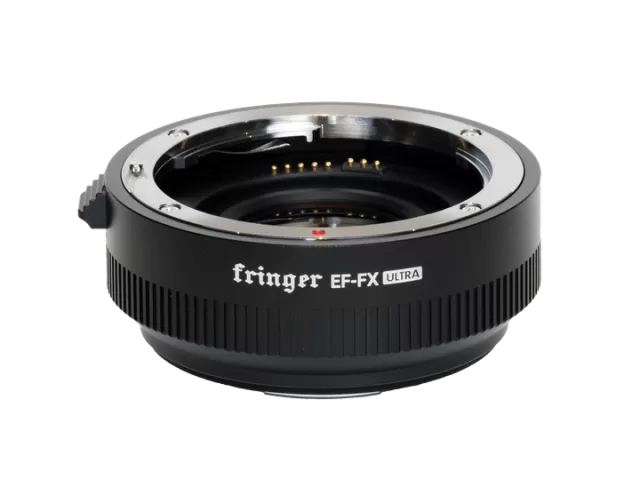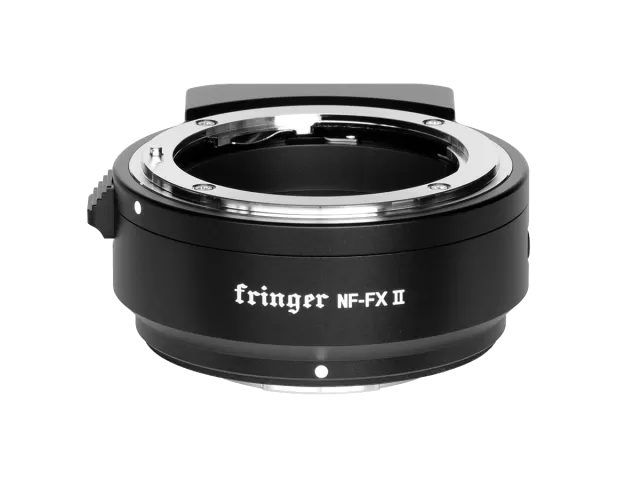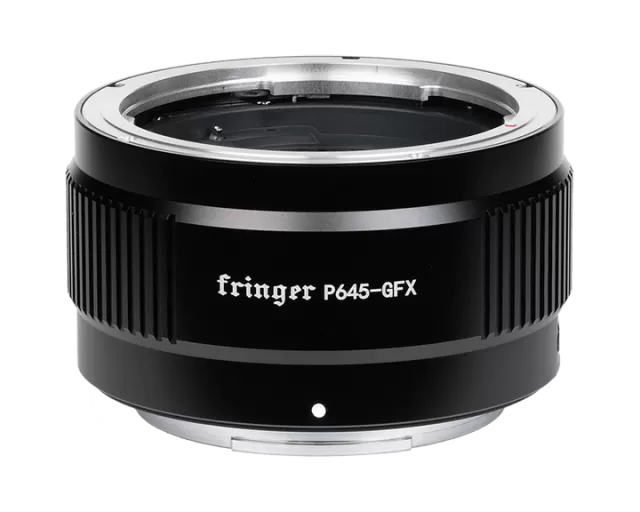

Fringer Canon EF to Nikon Z firmware
Fringer · Canon EF to Nikon Z · Lens
Latest firmware for the Fringer Canon EF to Nikon Z is v2.40 (September 28, 2026).
Changelog
Canon EF to Nikon Z firmware changelog
Firmware history
-
Release notes & download
Show release notes Hide release notes
- Fixed compatibility issues with the following LAOWA lenses:
- LAOWA FF 35mm F2.8 CA-Dreamer Macro 1X
- LAOWA FF 100mm F2.8 CA-Dreamer Macro 2X
-
Release notes & download
Show release notes Hide release notes
- Fixed compatibility issues with MEIKE 85mm F1.8 SE II
-
Release notes & download
Show release notes Hide release notes
- Issue fixed: Overexposure may occur when the new custom setting a14 "Maximum Aperture Lv" is enabled.
-
Release notes & download
Show release notes Hide release notes
- Fixed compatibility issues with the following Laowa lenses:
- LAOWA 180mm f/4.5 1.5X Ultra Macro APO
- LAOWA AF FF 200mm f/2 C-Dreamer
- An issue introduced by v2.10 is fixed: When using flash with a manual lens without chip, the screen may be very dark
-
Release notes & download
Show release notes Hide release notes
- Issue fixed: Nikon Z8 v3.0 firmware is not compatible
- Issue fixed: AF does not work on Canon EF180/3.5L
-
Release notes & download
Show release notes Hide release notes
- Issue fixed: IBIS can’t be activated for lenses without chip.
- Issue fixed: In AF-Cmode, when small aperture such as F8 or below is used, a small part of the pictures taken may be overexposed.
-
Release notes & download
Show release notes Hide release notes
- Issue fixed: When framing in Smode (Shutter Priority) with some lenses in certain scenes, the aperture may open and close repeatedly, causing the screen to flicker.
- Issue fixed: When using primes with TCs, the focal length recorded in EXIF lens name is not correct.
- Improved AF-Ctracking performance in certain scenes for high-performance bodies
2
(such as the Z8 and Z9)
- The IS control logic has changed. Now the lens IS and IBIS automatically exclude each other and can be selected on the fly (controlled by the IS switch on the lens).
- Lens with IS, the IS switch on the lens is ON: Lens IS is continuously activated and IBIS is automatically turned off. At this time, the vibration reduction setting in the camera menu is automatically set to ON (grayed out and cannot be changed)
- Lens with IS, the IS switch on the lens is OFF: Lens IS is turned off. The vibration reduction setting in the camera menu determines whether to activate IBIS. ON activates IBIS and OFF turns it off.
- Lens without IS: The vibration reduction setting in the camera menu determines whether to activate IBIS.
- When the camera is powered on and in shooting mode, if the IS switch on the lens is changed from OFF to ON, the lens IS is activated and IBIS is turned off; if the IS switch on the lens is changed from ON to OFF, the lens IS is turned off and IBIS is turned on (depending on the vibration reduction setting in the menu).
- When the lens IS is activated, the camera will automatically turn it off to save power when the camera is switched to playback mode or enters the menu. It will turn it on again when the camera returns to shooting mode.
-
Release notes & download
Show release notes Hide release notes
- Issues fixed: When using lens/TC combinations with max aperture smaller than F5.6 (such as EF100-400/4.5-5.6L IS II USM + 1.4X/2X), AF is not available.
-
Release notes & download
Show release notes Hide release notes
- For some external focusing lenses, a function is added so that the external focusing elements will move back automatically when powering off the camera. The following lenses are supported:
- EF85/1.2L II
- EF50/1.8STM
- EF40/2.8STM
- EF24/2.8STM
- SIGMA70/2.8ART
- When using lenses with IS, powering off the camera is faster now.
- Fixed compatibility issues with the following lenses:
- Samyang XP 50mm f/1.2
- Samyang XP 85mm f/1.2
- LAOWA 105mm f/2 STF
-
Release notes & download
Show release notes Hide release notes
- Fixed the issue that F1.2 lenses, e.g. EF50/1.2L and EF85/1.2L II, are displayed as F1.3
3
when wide open.
- Fixed compatibility issues with some lenses, including (and may not limited to):
- TAMRON SP 70-200mm F/2.8 Di VC USD G2 A025
-
Release notes & download
Show release notes Hide release notes
- Fixed the following issues introduced by v1.40:
- Wrong lens profile was applied and caused distortion at edges.
- AF fine-tune values couldn’t be saved for different lenses.
- Added movie AF speed setting support for the following lens:
- Tamron SP 85/1.8 Di VC USD
2020/9/5 Verssion 1.40
- Fixed compatibility issues with Z5
- Added movie AF speed setting support for the following lens:
- EF400mm f/2.8L IS II USM
2020/8/3 Verssion 1.30
- Added movie AF speed setting support for the following lens:
- Sigma 500/4 DG OS HSM Sports
- EF400mm f/4 DO IS II USM
- Fixed AF issues of the following lens:
- EF180/3.5L
- Fixed compatible issues with some of Tamron lenses, including (and may not limited to):
- Tamron AF 28-300mm f/3.5-6.3 XR Di VC LD Aspherical [IF] Macro (A20)
- Tamron AF 70-300mm f/4-5.6 Di LD 1:2 Macro A17
-
Release notes & download
Show release notes Hide release notes
- Fixed compatible issues with some of EF/EFS lenses, including (and may not limited to):
- EF50/1.4 (some early version)
- EF70-200/2.8L (some early version)
- Tamron SP 10-24/3.5-4.5 B001
- Tamron SP 28-75/2.8 XR Di LD
- Sigma APO 800mm f/5.6 EX DC HSM
- Sigma 50-150/2.8 EX Di HSM
- Pinpoint AF has been fixed for
- Tamron SP 35/1.4 Di USD
- Added support for lenses without electronic contacts. Unlike Nikon FTZ adapter, when
4
installed on Fringer EF-NZ adapter, lenses without electronic contacts also get the green square focus indication at the focus point position.
When this function greatly helps a lot of manual lens users, it has a drawback.
The Non-CPU Lens Data menu item doesn’t work anymore.
Without correct focal length data, the IBIS function of certain Zcameras, e.g.
Z6 and Z7, doesn’t work properly.
To fix this, we added manual lens focal length input function.
Usage: When the adapter is installed on the camera and no electronic lens is installed, turn on the camera and set it in photo shooting mode. (We use a 135mm manual lens as a sample)
- Half press and hold shutter button (or AF-ON button). Press AFL button (Center of sub-selector by default) for 3 times. Release shutter button (or AF-ON button).
- Now, there should be a F1.1 on the screen. It means we are now inputting the first digit of the focal length number.
- Press AFL button once. Now the Fnumber displayed on the screen represents the value currently stored. F10 means 0, F11 means 1, …, F19 means 9.
- Press AFL button for multiple times until current digit reaches the value you want.
Each time after it’s pressed, current digit will increase by 1. For example, we need to set it to 1 for a 135mm lens.
- Half press shutter button (or AF-ON button) and release it. Now, there should be a F2.2 on the screen. It means we are now inputting the second digit of the focal length number.
- Repeat step 3 to 4 to set the second digit. For example, we need to set it to 3 for a 135mm lens.
- Half press shutter button (or AF-ON button) and release it. Now, there should be a F3.3 on the screen. It means we are now inputting the third digit of the focal length number.
- Repeat step 3 to 4 to set the third digit. For example, we need to set it to 5 for a 135mm lens.
- Half press shutter button (or AF-ON button) and release it. Now, there should be a F1 on the screen. It means the focal length number has been stored and AF-ON button AFL button (by default)
5
the camera has returned to photo shooting mode.
During the above process, you may cancel at anytime by turning of the camera.
In that case, the focal length value stored won’t be changed.
After a new value is set, you may take a photo and check the focal length field in the EXIF.
The value is stored in the adapter permanently and won’t be affected by turning off the camera or removing the battery from the camera.
-
Release notes & download
Show release notes Hide release notes
- Fixed compatible issues with some of EF/EFS lenses, including (and may not limited to):
- Sigma 28/1.4 ART
- EF50/1.0L
- EF300/2.8L
- Tamron 17-50/2.8 VC B005
- Tamron 24-70/2.8 VC A007
- ZEISS Otus 55/1.4 ZE
- Added movie AF speed setting support for the following lens:
- Sigma 28/1.4 ART
How to upgrade: You need a PC or MAC and a USB Micro Bcable to upgrade the adapter.
- Connect the adapter to your computer.
- Find a new driver named “FRINGER” and copy new firmware to it.
- Wait for 20 seconds. The adapter will disconnect itself from the computer and reconnect.
If it doesn’t reconnect automatically, you may disconnect the USB cable and reconnect it manually.
- Check installed firmware version (VERSION.TXT on the adapter)
For example: Before upgrade:
After upgrade:
6
Troubleshooting: Some of the cables in the market are for charging only and not suitable for data transfer. Thus, if you can’t find the “FRINGER” drive when adapter is connected to the computer, check your cable!
When the adapter is installed on the camera, you may also check the its version through camera menu function, i.e. “SETUP MENU” → “Firmware version”. The numbers follow the “MA” is the adapter’s firmware version.
Watch the Canon EF to Nikon Z for updates
Get an email the moment Fringer publishes new firmware. Just your email — no account or password needed.