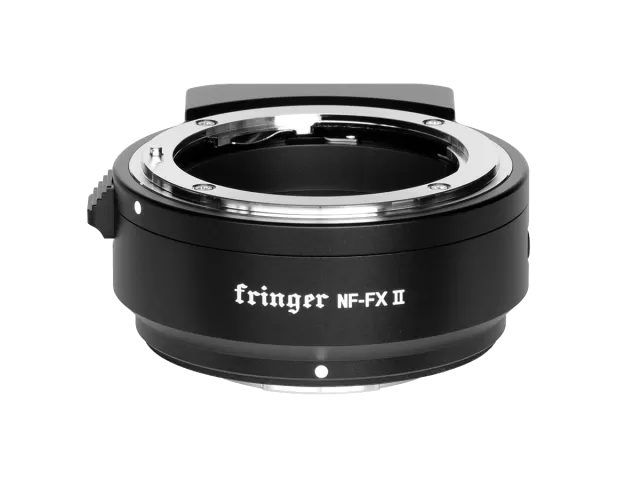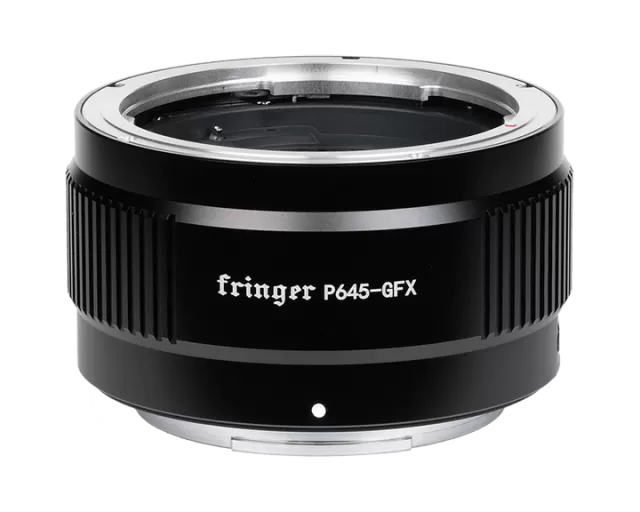

Fringer Nikon F to Fujifilm GFX firmware
Fringer · Nikon F to Fujifilm GFX · Lens
Latest firmware for the Fringer Nikon F to Fujifilm GFX is v1.60 (September 28, 2026).
Changelog
Nikon F to Fujifilm GFX firmware changelog
-
v1.50v1.60More accurate automatic lens corrections for three lenses -
v1.10first tracked
Firmware history
-
More accurate automatic lens corrections for three lenses — summary by updatemystuff.com
Release notes & downloadShow release notes Hide release notes
- For the following lenses, more accurate in-camera automatic correction methods have been employed to correct LaCA, vignetting, and distortion.
- AF-S NIKKOR 70-200mm f/4G ED VR
- AF-S NIKKOR 58mm f/1.4G
- AF-S NIKKOR 85mm f/1.4G
-
Release notes & download
Show release notes Hide release notes
- Issue fixed: Lens names recorded in EXIF for the following lens are not accurate:
- ZEISS Otus Apo Planar T* 85mm F/1.4 ZF.2
- ZEISS Otus Apo Distagon T* 55mm F/1.4 ZF.2
- Carl Zeiss Makro-Planar T* 100mm F/2 ZF.2
- Carl Zeiss APO Sonnar T* 135mm f/2.0 ZF.2
- Irix 150mm f/2.8 Macro 1:1
- ZEISS Milvus Planar T* 85mm F/1.4 ZF.2
- Carl Zeiss Planar T* 50mm F/1.4 ZF.2
- Carl Zeiss Planar T* 85mm F/1.4 ZF.2
- Carl Zeiss Distagon T* 25mm F/2 ZF.2
- Carl Zeiss Distagon T* 28mm F/2 ZF.2
- Carl Zeiss Makro-Planar T* 50mm F/2 ZF.2
- Carl Zeiss Distagon T* 15mm F/2.8 ZF.2
- Carl Zeiss Distagon T* 25mm F/2.8 ZF.2
- ZEISS Milvus Distagon T* 50mm F/1.4 ZF.2
- Carl Zeiss Distagon T* 18mm F/3.5 ZF.2
- Carl Zeiss Distagon T* 35mm F/2 ZF.2
- Carl Zeiss Distagon T* 35mm F/1.4 ZF.2
- Carl Zeiss Distagon T* 21mm F/2.8 ZF.2
-
Release notes & download
Show release notes Hide release notes
- Added following lenses to the tested and optimized lens list:
- Tokina AT-X 24-70mm f/2.8 PRO FX
- Tokina opera 50mm f/1.4 FF
- Tokina AT-X 16-28 F2.8 PRO FX
- SIGMA 70-200mm f/2.8 DG OS HSM S018
- SIGMA 70-200mm f/2.8 DG OS HSM S018 + 1.4X
- Added in-body vignetting and distortion correction profile for the following lenses.
Lens model Configuration item Tokina opera 50mm f/1.4 FF ForceNativeTokina5014Opera
2
Note: We have fixed the IBIS performance issues when activating in-body correction functions.
Now there is no need to turn off the auto corrections for IBIS.
But if you prefer to manually set the correction in camera menu, you may still disable the auto corrections.
To disable it for individual lens: change the corresponding configuration item’s value to 0.
-
Release notes & download
Show release notes Hide release notes
- Issue fixed: If you take a picture and play it back immediately, then within a very short time press the shutter button halfway to return to shooting mode, sometimes the camera may go into an error state with overexposure and autofocus failure until the next time you power cycle the camera.
- Issue fixed: For some lenses, when the in-body vignetting and distortion correction is on (i.e. set the camera in native mode), IBIS may not work properly. Now there is no difference regarding the IBIS performance between native mode and adapter mode.
- Added following lenses to the tested and optimized lens list:
- SIGMA APO 120-300mm F2.8 EX DG OS HSM
- SIGMA APO 120-300mm F2.8 EX DG OS HSM + TC-1401
- AF-S NIKKOR 120-300mm f/2.8E FL ED SR VR
- AF-S NIKKOR 120-300mm f/2.8E FL ED SR VR + 1.4X
- AF-S NIKKOR 120-300mm f/2.8E FL ED SR VR + 2X
- Added in-body vignetting and distortion correction profile for the following lenses.
Lens model Configuration item SIGMA APO 120-300mm F2.8 EX DG OS HSM ForceNativeSigma12030028OSS AF-S NIKKOR 120-300mm f/2.8E FL ED SR VR ForceNativeAfs12030028EVR SIGMA 135mm F1.8 DG HSM A017 ForceNativeSigma13518A Note: We have fixed the IBIS performance issues when activating in-body correction functions.
Now there is no need to turn off the auto corrections for IBIS.
But if you prefer to manually set the correction in camera menu, you may still disable the auto corrections.
To disable it for individual lens: change the corresponding configuration item’s value to 0.
-
Release notes & download
Show release notes Hide release notes
- For some lenses with anti-shake feature (VR/OS/VC), the waiting time when the camera switches to playback mode or is turned off is greatly shortened.
- Added following lenses to the tested and optimized lens list:
- SIGMA APO MACRO 150mm F2.8 EX DG OS HSM
3
- SIGMA APO MACRO 150mm F2.8 EX DG OS HSM + TC-1401
- Added in-body vignetting and distortion correction profile for the following lenses.
Lens model Configuration item SIGMA APO MACRO 150mm F2.8 EX DG OS HSM ForceNativeSigma15028OSEX
-
Release notes & download
Show release notes Hide release notes
- Added following lenses to the tested and optimized lens list:
- SIGMA 105mm F2.8 EX DG OS HSM MACRO
- SIGMA 105mm F1.4 DG HSM A018
- SIGMA 105mm F1.4 DG HSM A018 + 1.4X
- TAMRON SP 15-30mm F/2.8 Di VC USD A012
- AF-S NIKKOR 800mm f/5.6E FL ED VR
- AF-S NIKKOR 800mm f/5.6E FL ED VR + 1.25X
- AF-S NIKKOR 800mm f/5.6E FL ED VR + 1.4X
- AF-S NIKKOR 800mm f/5.6E FL ED VR + 1.7X
- AF-S NIKKOR 800mm f/5.6E FL ED VR + 2X
- Improved AF speed in some circumstances for the following lenses:
- AF-S NIKKOR 58mm f/1.4G
- AF-S NIKKOR 85mm f/1.4G
- AF-S NIKKOR 105mm f/1.4E ED
- Added in-body vignetting and distortion correction profile for the following lenses.
Lens model Configuration item AF-S NIKKOR 800mm f/5.6E FL ED VR ForceNativeAfs80056EVR SIGMA 105mm F1.4 DG HSM A018 ForceNativeSigma10514A SIGMA 105mm F2.8 EX DG OS HSM MACRO ForceNativeSigma10528OSEX TAMRON SP 15-30mm F/2.8 Di VC USD A012 ForceNativeTamron1530VC NOTE: For some lenses, when the in-body correction is on, IBIS may not work properly.
Please use lens IS instead or turn off the in-body correction if IS is higher priority.
To disable it for individual lens: change the corresponding configuration item’s value to 0.
Click here to understand how to upgrade.
Version 1.00 Initial version
You need a PC or MAC and a USB Micro Bcable to upgrade the adapter.
- Connect the adapter to your computer.
- Find a new driver named “FRINGER” and copy new firmware to it.
- Wait for 20 seconds. The adapter will disconnect itself from the computer and
4
reconnect. If it doesn’t reconnect automatically, you may disconnect the USB cable and reconnect it manually.
- Check installed firmware version (VERSION.TXT on the adapter)
For example: Before upgrade:
After upgrade:
Troubleshooting: Some of the cables in the market are for charging only and not suitable for data transfer. Thus, if you can’t find the “FRINGER” drive when adapter is connected to the computer, check your cable!
You may also read the adapter’s firmware version by Fujifilm’s method, i.e. press and hold DISP button before powering on the camera. The “Lens version” on the screen is actually the adapter’s firmware version.
Watch the Nikon F to Fujifilm GFX for updates
Get an email the moment Fringer publishes new firmware. Just your email — no account or password needed.