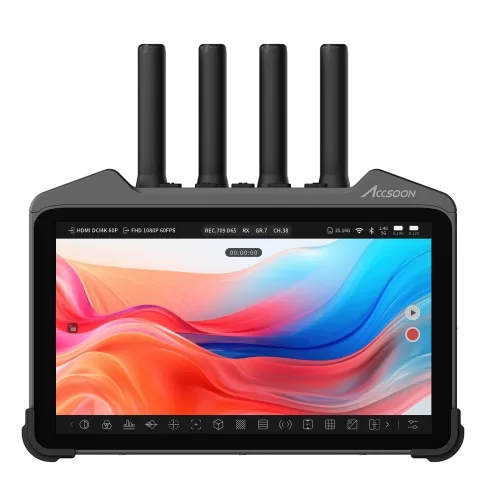

Accsoon CineView M7H Pro firmware
Accsoon · CineView M7H Pro · Video
Latest firmware for the Accsoon CineView M7H Pro is v2026.04.16 (April 16, 2026).
Changelog
CineView M7H Pro firmware changelog
Firmware history
-
Release notes & download
Show release notes Hide release notes
– 2026
APRIL
UPDATE
– Release Date: 2026.04.16
UPDATE NOTE
- This update does not require a second time update.
- CineView M7H Pro Users SHOULD NOT UPDATE the HDMI In Driver.
- Only for CineView M7/M7 Pro users who updated straight to this version from prior to 2026 Jan Firmware:
- To take full advantage of this update, after the update, please go to Device Info. settings in the Product Feature settings panel (tap on the top status bar), then swipe down to HDMI In Driver and manually update the HDMI driver. Please note you will need to do this in Monitor Mode and connect your CineView M7 to a Wi-Fi network with Internet access.
- After update, the gamma setting in Calibration menu might be reset to “2.20” value. For customers working in professional broadcast environment, please remember to set the value back to “2.40”.
CAMERA CONTROL
- CineView M7 series now supports Canon XC protocol, enabling wireless camera control support for select Canon C series cameras.
- Validated Camera Models:
Canon’s latest EOS-C series lineup: C50 , C70 , C80 , C400 .
- Full Canon XC Camera Control Support:
- Intelligent IP connection
- Unlike some high-end monitors that require users to work through a long and often overcomplicated network setup process, CineView only requires you to input the target camera IP address and verything else will be handled automaticallyby the smart operating system.
All you need to do is connect your CineView M7 to the camera hotspot or the LAN network your target camera is connected to, check the current IP address in the camera menu then input it in the special IP address input box on CineView M7 and that’s it.
- Optimized Imaging Parameter Mode Support
- The current Canon XC Camera Control integration fully supports both Gain Modes:
ISO
and db , and two Shutter Modes: Shutter Speed and Angle .
- Touch Focus Control
- Focus point control is also supported. It’s recommended to switch to a smaller AF detection box for better remote focus control.
- Expanded Camera Control Compatibility List
- Note1:
(All listed cameras were validated through internal tests. Models outside of the compatibility list may work, but are not guaranteed.)
- Note2:
(The “ Basic Support ” below includes ISO, Shutter Speed, Aperture, White Balance Preset and Custom WB Kelvinparameter controls, plus additional Focus Control and Record Trigger with optional Record Status Sync. Refer to prior release notes for more detailed guide and information.)
- Detailed List:
- USB-PTP
(Wired)
- Sony
- FX3
,
FX30
(Basic support with optimized support for EI & Shutter Angle mode)
- A7 Mark IV , A7s Mark III , A9 Mark III , A7c Mark II (Basic Support)
- Canon
- R5 , R5 Mark II , R6 , R6 Mark II , R7 , R8 .
(Basic Support)
- Nikon
- Z9 , Z8 (Basic Support)
- Z5 , Z50 , Z6 ,
Z6II
,
Z7 II
(Basic support but Focus Control unusable due to camera limitation)
- IP-PTP
(Wireless)
- Sony
- FX6 Special Optimization (Basic support with optimized support for EI/db & Shutter Angle mode) (*Please set physical WB toggle to “
PRE
” for accurate white balance control.)
- FX3
,
FX30
(Basic support with optimized support for EI & Shutter Angle mode)
- A7 Mark IV , A7s Mark III , A9 Mark III , A7c Mark II (Basic Support)
- IP-Canon XC (Wireless)
- Canon
- C50 , C70 , C80 , C400 (Basic support with optimized support for db & Shutter Angle mode)
- Guide on Canon C series camera control setup !!!
- Setting Up the Connection
- The Canon XC commands is based on HTTP protocol, therefore it’s only operational through IP conenction. You can either setup a camera hotspot or let the camera connect to an external network, both Wi-Fi and Ethernet connections work.
(*This guide can only serve as reference, this setup process may change with future Canon camera firmware updates.
If the following step-by-step guide no longer applies, just remember the core concept: configure the camera to setup its own hotspot or connect to an existing network, then connect CineView M7 to the same network and input the IP Address of the camera, then the app will handle everything else for you.)
- 1. Enable Network Connection To do this, you will need to go to the camera settings, switch to “Network Settings”, and enable the network connection.
- *Please bare in mind the C70 model does not have internal network support, you will need to use an external Wi-Fi or Ethernet adapter to enable network operation. Here is the official compatibility list from Canon https://support.usa.canon.com/kb/s/article/ART177792 .
If these models are hard to purchase in your region, please look for adapters using the most basic and universal chipset.
These solutions tend to have better compatiblity, but it’s not guaranteed.
In our tests, we found out an old but generic Ethernet adapter based on Realtek RTL8153 worked, while newer adapters did not.
We recommend searching for compatible adapters on YouTube and Reddit forums.
- 2. Start New Network Config Process Then disconnect existing network operation if present, go to “Conenction Settings”, Choose an empty unspecified slot, and select “Create New with Wizard”. Next Select “XC Protocol”, then select “Create New Comm. Setting”.
- 3. Choose Your Connection Method In the “Network Type” selection page, select the one you’d like to use for later connection.
If you’d like to host a camera hotspot, or let the camera connect to an external Wi-Fi network, choose Wi-Fi. If you’re connecting the camera to an external Ethernet network, choose Ethernet.
- Please do not use Ethernet adapter on CineView M7 and connect it directly to the camera’s RJ45 port. CineView M7 can not act as a network router and requires a complete external Wi-Fi network to operate. RJ45 Ethernet adapter support also not integrated, as CineView M7 is meant to use its on-board Wi-Fi module for more convenient wireless camera control connection.
- 4. Setup Your Camera Network Config If you chose “Wi-Fi”, then choose “Camera Access Point Mode” if you want a camera hotspot ( most recommended way ), or browse the available Wi-Fi network and connect to an existing network.
It’s recommend to later choose “Easy Connection” and “Automatic Setting” as this option will let the camera automatically detect what IP Address is available and avoid address conflicts.
After this select “Create New Function Settings”, and then choose “No Auth. (general user)”. (*Extra Note: If you’re taking the camera hotspot approach, you may need to connect CineView to the camera hotspot Wi-Fi network halfway through to validate and save the settings.) —— If you chose “Ethernet”, please then select “Setup with Network Connection”.
Also recommended to later choose “Easy Connection” and “Disable” IPv6.
Later process generally the same with Wi-Fi except that you don’t connect to wireless networks.
- 5. Check Current Camera IP Address After the network configuration, you just need to go into “Connect”, select the network settings slot you just saved to, and confirm to use this network config. Then go to “Connection Settings”, enter “Check Settings”, here displays the current network status of the camera, including the current IP address.
- 6. Connect the CineView M7 Now connect your CineView M7 to the corresponding network. Then tap on the top status bar, and find Camera Control setting in the menu.
Switch to “IP” option in “Connection Method”, then switch to “Canon C-series XC”, and now you input the IP address of the camera, tap on confirm button, the Accsoon SEE App will automatically connect to the camera. (*If you can’t find the “IP” option, remember: Wireless Camera Control Connection is Only Available in Monitor Mode. )
- Notes to Pay Attention to:
- 1. White Balance Settings It’s recommended to switch the White Balance Increment (shown as “C. Temp. Increment”) to “Kelvin”. Choosing Mired for now will not cause camera to respond very differently, but later firmware may introduce unexpected behavior like
-
Release notes & download
Show release notes Hide release notes
– 2026
MARCH UPDATE
– Release Date: 2026.03.25
UPDATE NOTE
This update is an OTA update only available for units already updated to January firmware update.
This update is available right in the built-in Accsoon SEE App. ——————— You just need to connect your CineView M7 to a Wi-Fi network with Internet access, and a prompt will automatically show up asking if you’d like to update.
But to update to this latest version, you will need to first install the 2026 January Update first, please scroll down and refer to the Update Note of 2026 January Update for correct installation. ——————— This update is a hot update, changing only the built-in apps.
Further updates like this will be easily accessible through this built-in automatic update process
- After update, the gamma setting in Calibration menu might be reset to “2.20” value. For customers working in professional broadcast environment, please remember to set the value back to “2.40”.
CAMERA CONTROL
- Camera Control feature now includes the new FX6 optimization.
- Crash Fixed
- FX6 support has been strengthened to avoid crashes due to unsupported data formats in the camera status report. Now the code base is more robust and will no longer crash when connected to certain FX6 models like on previous update.
- V5.0 Support Added
- A firware-version-based communication switch has been implemented to battle the inconsistent response and data format in Sony FX6’s camera status reports.
Now both the earlier V3 and the latest V5 version are supported. V5 firmware FX6 users can get correct parameter readings with both ISO/EI/db and Shutter Speed/Angle support while V3 users are left unaffected. (Verified on V3.0 and V5.02 FX6s)
- Canon R series optimization also added.
- Crash Fixed
- Camera Control feature’s code base has been strengthened to avoid crashing when connected to certain Canon R-series models with uncommon settings.
TX Optimization (Only for Pro)
- Added support for new release and refresh of CineView products.
- CineView SE 4K and CineView Master 4K Lite support has been added.
FURTHER
OPTIMIZATION
- Now network reset will no longer clear the memory of “Transmitter Model” selection in TX Mode (Only for Pro).
BUG FIXES
- Fixed an issue where the Camera Control UI will glitch when switching between portait and landscape UI orientation while connected to a camera.
-
Release notes & download
Show release notes Hide release notes
– 2026
JANUARY UPDATE
– Release Date: 2026.01.19
UPDATE NOTE
- This update does not require a second time update.
- But to take full advantage of this update, after the update, please go to Device Info. settings in the Product Feature settings panel (tap on the top status bar), then swipe down to HDMI In Driver and manually update the HDMI driver. Please note you will need to do this in Monitor Mode and connect your CineView M7 to a Wi-Fi network with Internet access.
- After update, the gamma setting in Calibration menu might be reset to “2.20” value. For customers working in professional broadcast environment, please remember to set the value back to “2.40”.
CAMERA CONTROL
- Camera Control feature now supports EI and shutter angle adjustment on supported Sony cameras.
- Added support for EI value and Shutter angle value adjustment for cameras like FX3/30.
- An automatic detection process is implemented. When connected cameras like FX3/30 switches to shutter angle or EI mode, the parameter dial on the connected M7 monitor will switch simultaneously.
- Camera Control now features support for select Nikon models.
These Nikon models all support imaging parameter adjustments, but focus control is only available on Z8 and Z9, as other lower-end models do not support outputing video signal and handling external focus control over PTP protocol at the same time.
- Models supporting focus control :
- Z9 | Z8
- Models not supporting focus control :
(These models will shutdown video output when adjusting focus.)
- Z5 | Z50 | Z6 & Z6II | Z7 II
- Expanded supported camera list:
- Sony:
- FX6 (beta), FX3, FX30, A7 Mark IV, A7s Mark III, A9 Mark III and A7c Mark II.
- Canon:
- R5, R5 Mark II, R6, R6 Mark II, R7 and R8.
- Nikon:
- Z5, Z50, Z6, Z6 II, Z7 II, Z8 and Z9.
MONITORING FEATURES
:
- New Focus Peaking Tool added A new and more powerful focus assisting tool called “Peaking” has been added to CineView M7 series.
The new Peaking tool will look for sharp edges and strengthen the contrast, instead of overlaying colors like previous focus peaking tool (now named “Focus”), the Peaking tool will only strengthen the contrast of the edges on the original image, making it easier to spot the focal plane and the focus included content on the screen.
- A new Peaking tool added , it’s listed next to the original focus overlay tool .
- A new peaking setting page added to monitoring tools settings, giving you access to strength controls of Peaking tool.
- Note:
For film crews, you’ll find this monitoring tool very similar to the focus assisting tool with the same name on popular and renowned higher-end camera-top monitors. The default strength of Peaking is 30%, similar to the value of 10-15 on the peaking tool from the higher-end option.
- Vertical UI Accompanying the release of Portable Triple Vertical Monitor Setup for CineView M7 Pro, a vertical UI has been added to the monitoring page of the built-in Accsoon SEE App. Now you can shoot vertical content with the comfort of specially optimized UI layout.
- Vertical UI can be accessed with button.
- A new vertical optimized monitoring UI has been added.
- Added two separate input video signal rotation (0 and 180 degree) and UI rotation (0, 90,180, 270 degree) controls to individually adjust the rotation of the UI and the input signal.
- Now Livestreaming in Vertical is supported. When the monitor is set in vertical UI mode, the livestream encoder will encode in vertical format according to your current view settings. (When livestreaming starts, the rotation button will be locked.)
- A new scopes rendering mechanism has been integrated. In vertical mode, the scopes will switch pixel sampling method and rendering direction to fit the scope’s visual direction. A new correcting optimization has been integrated to ignore black bars caused by anamorphic de-squeeze in vertical mode similar to original horizontal mode, displaying only the scopes information of the input video source.
- ARRI Style False Color Option Now you can switch between legacy style false color and the newly added monitoring-based ARRI style false color.
- A new false color style option has been added to the false color setting.
- An ARRI false color detail setting option has been added in the false color setting page, you can now choose the recording format (LogC3, LogC4 Alexa 35, LogC4 Alexa 265) and EI value for best accuracy.
- Better Image Processing Pipeline Now the signal processing pipeline on CineView M7 series has been upgraded to contain more color information, giving you nicer color transition, clearer color object edges and retain more organic film noise from the sensor.
- *Manually updating HDMI driver needed. Please refer to the update note above.
- Interlaced Signal Optimization Now a new interlacing pipeline has been integrated to CineView M7 series, delivering better image when receiving interlaced video input. This update gives you smoother edges around objects, and much improved overall image quality without obvious aliasing artifacts on previous firmwares.
- DCI Format Major Optimization Now CineView M7 series is much better optimized to handle DCI 4K inputs. A new use-case dependent ratio conversion pipeline has been integrated to intelligently handle 17:9 DCI formats and 16:9 UHD/FHD formats I/O.
- [DCI Input] When the input source is DCI 4K, the monitoring app will now properly scale down DCI video to 16:9 screen with black bars on the top and bottom of the screen, instead of incorrectly stretching the horizontal scale on previous firmware versions.
- [DCI Input → DCI Output] IO details When the input is DCI 4K and the output setting is set to DCI 4K as well, the video processing canvas will be set to DCI format 17:9 ratio.
- Video I/O:
- HDMI Out: DCI 4K up to 60fps | no black bars (Currently 4096*2160 is the only DCI resolution format supported.)
- SDI Out: 1080p up to 60fps | black bars on top and bottom (The SDI output on M7 and M7 Pro only supports 1920×1080 resolution, the SDI output will be a scaled-down version of the HDMI output, introducing black bars on top and bottom.)
- TX Transmission: up to UHD 4K 60fps | black bars on top and bottom (For better compatibility to different CineView products, currently all DCI format sources will be wrapped into a 16:9 container, introducing black bars on top and bottom.)
- Custom Encoding:
- Recording in Monitor Mode: DCI 4K up to 60fps | no black bars
- Livestream in Monitor Mode: up to UHD 4K 60fps | black bars on top and bottom (For better online platform compatility, DCI format will be wrapped in a 16:9 container before encoding.)
- Recording in TX Mode: up to UHD 4K 60fps | black bars on top and bottom (Recording in TX Mode will record the wireless video bitstream, giving you the same result as the sent out bitstream.)
- [DCI Input → UHD/FHD Output] IO Details When the input is DCI 4K and the output setting is set to UHD/FHD 16:9 format, the video processing pipeline canvas will be in 16:9 ratio, adding black bars on the top and bottom of the screen to all outputs.
- Video I/O:
- HDMI Out: up to UHD 4K 60fps | black bars on top and bottom
- SDI Out: 1080p up to 60fps | black bars on top and bottom
- TX Transmission: up to UHD 4K 60fps | black bars on top and bottom
- Custom Encoding:
- Recording in Monitor Mode: up to UHD 4K 60fps | black bars on top and bottom
- Livestream in Monitor Mode: up to UHD 4K 60fps | black bars on top and bottom
- Recording in TX Mode: up to UHD 4K 60fps | black bars on top and bottom
- *The added black bars will be affected by Look LUT in this case as it’s present in the processing canvas.
- [UHD Input] When the input source is UHD/FHD 16:9 format, the monitoring app display the video source full screen regardless of your output setting for best screen coverage.
- [UHD/FHD Input → UHD/FHD Output] IO Details When the input is UHD/FHD and the output setting is set to UHD/FHD 16:9 ratio as well, the video processing
-
Release notes & download
Show release notes Hide release notes
– 2025 October UPDATE – Release Date: 2025.10.20 PLEASE UPDATE TWO TIMES WITH THIS VERSION OF FIRMWARE!
- For CineView M7 Pro Users:
Updating only once may result in failure to activate Dual-Band wireless video module in TX mode on certain models. Please update twice to avoid this problem.
- After update, the gamma setting in Calibration menu might be reset to “2.20” value. For customers working in professional broadcast environment, please remember to set the value back to “2.40”.
Update Introduction Video (English): https://youtu.be/ozRtOwrE_Gw TX MODE: (Only for M7 Pro)
- This Firmware Update brings Transmitter function to CineView M7 Pro.
- You can now reboot to TX mode in the Mode settings, CineView M7 Pro under TX mode will transmit the output signal to 4 receiving units , including:
- CineView Master 4K’s receiver – Simply match the pairing group of the CineView Master 4K’s receiver to the group number on TX mode M7 Pro, they will automatically connect.
- Other CineView M7 Pros in RX mode – For CineView M7 Pros in RX mode, please set the transmitter model option to CineView Master 4K, and then match the pairing group number setting to the TX mode M7 Pro, then they will automatically connect.
- Smart devices monitoring with Accsoon SEE Apps – For smart devices, please join the “Accsoon_XXXX” named 5GHz Wi-Fi network first, then launch the Accsoon SEE App, enter the CineView Master 4K’s monitoring page.
- Capable of up to DCI4K 60FPS transmission.
- Wired output support – You can still output the video via HDMI & SDI in TX mode.
- Video recording support – You can record the wireless video feed to the local storage on the TX-mode M7 Pro.
- This tutorial video will walk you through the wireless connection process: https://www.youtube.com/watch?v=gPJZSlKrO7U
- (Note: Higher than 4 receiving devices can be achieved, but as more devices connect to the same TX mode M7 Pro, the wireless video connection will gradually become unstable. 4 is the recommended stable connection number.)
- (Note: In TX mode, video output specification will be automatically synced to the input to imitate video loopout, and the default streamed wireless video will be in the same resolution and fps as the input.)
- (Note: Downscaling in TX’s HDMI & SDI output is disabled to ensure best wireless video streaming quality. If the video input is 4K through HDMI, 3G SDI output will be disabled, and a monitor only supporting 1080P signal input will not be able to display the 4K signal in M7 Pro’s HDMI output)
CAMERA CONTROL
- Camera Control feature now supports wireless connection , enabling wireless camera control through camera hotspot or on-set Wi-Fi network.
- A Camera Control Mothod switch has been added to Camera Control settings, you can now manually select connecting to cameras via “USB” or “IP”.
(Only available in Monitor mode, wireless camera control in TX and RX mode will be implemented in the future.)
- A remote connection panel has been added to Camera Control. When connecting to cameras over on-set Wi-Finetwork, if usernames and passwords are required for connection, you can now enter the credentials directly in the panel to initiate the connection.
- An automatic detecting mechanism is now implemented for IP connection. When connecting to camera hotspots from select models like FX3/FX30, the app will now establish connection automatically without requiring connection credentials.
- *For now, wireless connection only supports Sony camera models.
- Connection Method:
- Hotspot : Please go to Network settings, and turn on Wi-Fi Direct function in the Remote Shoot function menu, the SSID is the camera hotspot’s Wi-Fi name. Go back to CineView M7/M7 Pro, find the Wi-Fi network and use the password for Wi-Fi connection. Then go to camera control settings and switch the method from USB to IP, they will automatically connect.
- FX6’s beta support is now added. (Connection via Wi-Fi only, verified with firmware V3.0)
- Supported Features:
- Remote record triggering
- Control over aperture
- Control of shutter speed, supports both shutter time and shutter angle.
- Control of sensor gain, supports ISO, EI and db mode.
(Validated on firmware version V3.0, later firmware may have incompatibility issue in EI and db gain mode.)
- White balance and color temperature settings (Please set the white balance toggle on the camera body to
“PRE”
, as both “A” and “B” mode comes with incomplete white balance list reporting, resulting in inconsistency with camera white balance adjustments.)
- Connection Method:
Please go to Network settings, and turn on network in AP Mode setting (equal to WiFi Direct or camera hotspot on FX3/30 cameras), after that join the Wi-Fi network on your CineView M7 or M7 Pro.
Go to camera control settings and switch the method from USB to IP, then after the remote connection panel shows up, enter the connection username and passwords, which can be found in network setting’s “Access Authentication”.
- Expanded supported camera list:
- Sony:
- FX6 (beta) , FX3, FX30, A7 Mark IV, A7s Mark III, A9 Mark III and A7c Mark II.
- Canon:
- R5, R5 Mark II, R6, R6 Mark II, R7 and R8.
MONITORING FEATURES
:
- Unclipped Zoom-in Now zooming in to video feed with anamorphic de-squeeze will no longer have fixed black bars, as the entire live view canvas now scales up as you zoom in to the video feed.
- “Marker” tool now changed to “Blanking.”
- An optional “Blanking Safezone” function is added.
It can be used to scale down the blanked area to avoid potential camera status UI in the live view feed.
- Safe zone, grid guides and “Blanking Safezone” now optimized to scale down together to better help you frame.
- Preset ratio options now optimized to popular delivery ratios.
- Supports custom ratio of down to two decimals.
- An optional “Blanking Safezone” function is added.
- Vertical Anamorphic de-squeeze now supported An additional “Anamorphic direction” is added in the desqueeze settings.
You just need to enter your lenses’ anamorphic factor and choose the correct anamorphic direction, the app will handle the conversion for you so you don’t calculate a custom “0.xx” anamorphic ratio for vertical installation.
- Custom app background image now supported You can now change the “No Signal” idle image in CineView M7 and M7 Pro’s Accsoon SEE app. You can import your own custom background image in the Display settings, this feature is especially useful for showcasing your brand to clients.
Custom background option available in the “Display” monitoring tools settings. Supports .jpg .jpeg .png formats, and the imported image needs to be 16:9 ratio.
FURTHER
OPTIMIZATION
- Optimized the speed of initiating recording and live streaming.
- Optimized the connection latency and stability of Camera Control.
- UI elements optimized for better clarity.
- Optimized the logic and algorithms so that monitoring tools like false color, zebras, histograms now work better when the live view is de-squeezed.
- Optimized the recording status animation, now an obvious “REC” element will appear when recording.
- Sharpening effect is now optimized and fully functional.
- (Only for M7 Pro) Further optimized the wireless connection in RX mode, now reconnection after signal drop-outs will be quicker and smoother.
- (Only for M7 Pro) Optimized the audio decoding in RX mode. Audio quality now improved when paired with CineView Quad/HE/SE/2SDI.
- (Only for M7 Pro) Optimized the status syncing in RX mode, now status changes from the transmitter will be synced and shown faster.
- (Only for M7 Pro) Mode switching now optimized to automatically turn on Wi-Fi connection so you don’t have to manually turn it on when switching to RX Mode.
BUG FIXES
- Fixed the image tearing problem in HDMI/SDI output in the previous firmware.
- Fixed an issue of unable to properly recognize streaming URL paths with complex components.
- Fixed the data reload failure when you re-enter the app after leaving it
-
Release notes & download
Show release notes Hide release notes
– 2025 AUGUST UPDATE –
Release Date: 2025.08.14 Update Introduction Video (English): https://youtu.be/VJmi9mbHsP4
CAMERA CONTROL
- This firmware update bssrings PTP bsased Camera Control feature to CineView M7 series.
- Now you can turn on Camera Control function in the product feature settings, enabling this function will bring up three additional buttons on the monitoring page, giving you control of camera parameters, synchronized recording and touch focus.
Notes
- Camera Control feature now only support select Sony and Canon models. Compatibility list will be further expanded later on with future updates.
- The current implementation only support camera control via USB-C connection.
- The current validated compatibility list is as follows: a. Sony:
FX3, FX30, A7 Mark IV, A7s Mark III, A9 Mark III and A7c Mark II. b. Canon: R5, R5 Mark II, R6, R6 Mark II, R7 and R8.
OPTIMIZATION
- Optimized the support of opus audio codec.
- Optimized the fans speed control algorithm.
- Optimized the HDMI audio signal to output after the video signal is ready.
- Optimized the RTMP streaming function.
- Optimized the support for 23.976fps input.
- (Only for M7 Pro) Optimized the reconnection logic when transmitter’s video signal dropped out in RX mode. Now image transmission will be more reliable.
- (Only for M7 Pro) Optimized the reconnection speed when disconnect for transmitter’s dual-band network. Now reconnection will be faster.
BUG FIXES
- Fixed an issue where audio input or output problem leading to app crashes.
- Bug fixes and performance improvements.
-Last Edit: 2026.04.16 by Adam Duan Products
- Accsoon SeeMo 4K
- Accsoon SeeMo Pro
- Accsoon SeeMo
- CineView Master 4K
- CineView 2 SDI
- CineView SE
- CineView HE
- CineView Nano
- CineView Quad
- All Products Accessories
- PowerCage Ⅱ
- PowerCage Pro Ⅱ
- PowerCage Mini Support
- After-sale Service Policy
- Privacy Policy - Support Center
- Download Center Cooperation
- Become A Dealer
- Accsoon Sdk Partners
- Sdk Launch Request
- Careers Resource
- Blog About Accsoon
- Who We Are
- Contact Us
- Accsoon Events Technology
- Dual-Band Transmission Copyright © 2026 Accsoon All Rights Reserved Facebook Instagram YouTube TikTok Summer Sale Up to 15% off While Supplies Last!
Shop Now
- Product Expand child menu Expand
- Production Monitors Expand child menu Expand
- CineView M7 Series
- Wireless Video Transmission Expand child menu Expand
- CineView Master 4K
- CineView 2 SDI
- CineView SE
- CineView HE
- CineView Quad
- CineView Nano
- Mobile Monitoring Solution Expand child menu Expand
- Accsoon SeeMo 4K android
- Accsoon SeeMo 4K
- Accsoon SeeMo Pro
- Accsoon SeeMo
- Wireless Intercom System Expand child menu Expand
- Accsoon CoMo
- Motorized Camera Sliders Expand child menu Expand
- TOPRIG S40/S60
- Tablet Cages Expand child menu Expand
- iPad PowerCage Ⅱ
- iPad PowerCage Pro Ⅱ
- PowerCage Mini
- Accessories Expand child menu Expand
- ACC02
- ACC03
- ACC04
- Accsoon TOPRIG 100W 4-Bay NP-F Fast Charger
- Accsoon V-Lock Adapter
- Support
- Become a Dealer
- Where to Buy
Watch the CineView M7H Pro for updates
Get an email the moment Accsoon publishes new firmware. Just your email — no account or password needed.