
Specifications
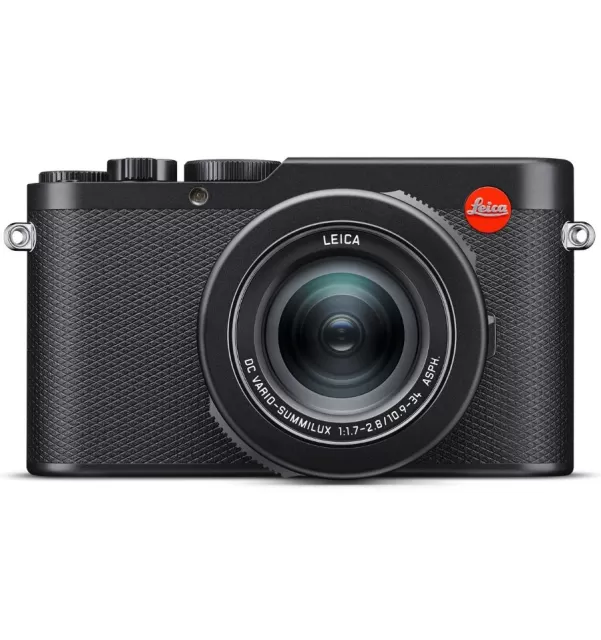
D-Lux 5 specifications
- Body type
- Compact
- Resolution
- 10.1 MP
- Sensor
- CCD
- ISO range
- 80–3200
- Fastest shutter
- 1/4000
- Burst rate
- 2.5 fps
- Storage
- SD/SDHC/SDXC, Internal
- Video
- AVCHDLite, MotionJPEG
- Weight
- 271 g
- Dimensions
- 110 × 66 × 43 mm
- Weather sealed
- No
Changelog
D-Lux 5 firmware changelog
-
v2.0first tracked
Firmware history
-
Release notes & download
Show release notes Hide release notes
Leica Camera AG / Page 1 of 6
Installation instructions for the LEICA D-LUX 5 - Firmware 2.0
Dear Customers,
By installing the firmware you can enhance the LEICA V-LUX 5´s operation in the areas listed below.
Update Contents Model Number LEICA D-LUX 5 Update Version Ver 2.0 Update File Name DL5_V20.ZIP
DL5_V20.BIN
Update Date 13/12/2011
Improvements
- Version Description
- Ver 2.0 1. Auto Focus speed-up
- The upper limit of the shutter speed in Manual Exposure Mode has been raised. (max. 250 seconds)
- [HIGH ISO NR] for ISO 1600 and ISO 3200 has been added to the [REC] menu.
- When [MF] is set, you can make fine adjustments to the focus using a simpler operation than before.
- Improved auto white balance performance.
- The position and size of the AF area you have set are now stored.
- [ACTIVE MODE] has been added to the [MOTION PICTURE] menu.
- The AF/AE Lock operated by half-pressing the shutter button has been improved.
- [MINIATURE EFFECT] has been added to My Colour Mode.
- [MONITOR] / [VIEWFINDER] has been added to the [SETUP] menu.
Leica Camera AG / Page 2 of 6
Firmware Update Procedures (Overview) STEP 1.
Check the current version of firmware used by your camera. STEP 2.
Download an updated version of the firmware and double click on the ZIP-file to unpack it STEP 3.
Copy the firmware file from the desktop/finder onto an SD Memory Card in its top level folder. STEP 4.
Install the firmware update.
CAUTION
Please do not turn off your camera, or do not remove the SD Memory Card while updating your camera's firmware.
Doing so can cause serious damage to your camera!!!
If the camera malfunctions after the firmware updating, please contact the dealer where you purchased the camera or the LEICA Customer Service.
Actual installation steps STEP 1: Checking the current firmware version.
Leica recommends that you update the firmware in your camera in the following case: If the firmware version indicated is older than the version being offered.
The firmware update is not necessary if the current firmware version on your camera is Version 2.0.
- Turn the camera on.
- Slide the [REC]/[PLAYBACK] selector switch to the PLAYBACK mode
- Press [MENU/SET] to display the menu.
- Press [] [ ] to select the [SETUP] menu icon []
- Press [] and select the [VERSION DISP.] menu item
- Press [] again and [][VERSION DISP.] appears
STEP 2. Download the updated version of the firmware with the following procedures, and extract it.
- Download and save the DL5_V20.ZIP file with the firmware onto your desktop.
DL5_V20.ZIP
- Double click the downloaded file and move the DL5_V20.BIN file from the zip-archive folder to your desktop.
Leica Camera AG / Page 3 of 6
STEP 3. Copy the firmware file onto an SD Memory Card.
Preparation of the SD Memory Card A minimum of 16 MB available memory is necessary.
Please format the SD Memory Card before using with LEICA D-LUX 5.
Please format the SD Memory Card only in the camera.
Refer to your instruction book for more details.
You will find the menu item FORMAT in the SETUP menu of the camera.
When formatting the SD Memory Card, all data, including protected files, will be erased and can not be recovered.
Please make sure to back up your important data so you don't loose it.
Insert your formatted SD Memory Card to your SD slot of your PC.
Copy the firmware onto the SD Memory Card. If your PC does not have an SD slot, use an external USB SD Reader device.
Copy the file into the Root directory (*1) of the SD Memory Card. (*1) Root directory = The first or top-most directory in the hierarchy.
STEP 4. Install the firmware update
- Charge the battery fully.
- Make sure to turn off the power switch.
- Insert the fully charged battery to the body.
If the battery is not fully charged, the update process screen will not appear.
- Insert the SD Memory Card prepared in STEP 3 into the camera.
- Turn on the power switch.
- Set Playback / Recording switch to playback mode.
- The firmware update screen will appear.
Note: If a newer version or the same version of the firmware has already been installed, the initial firmware update screen will not be displayed.
If the battery is not fully charged the initial firmware update screen will also not appear, and the camera will display "NO VALID PICTURE TO PLAY".
Please turn the camera off and on again then.
- Press the UP-button to select YES.
- Press the MENU/SET button and the screen will change.
The LEICA D-LUX 5 will start the update process. The firmware update will take about 30 seconds. Please do not attempt the following operations before completion of next step Turning the power off and on Opening the SD Memory Card compartment Removing the SD Memory Card
Leica Camera AG / Page 4 of 6
< Version up on Going>
- Once the firmware update process is completed, the LEICA D-LUX 5 will reset to playback mode automatically.
- To verify the version number, follow Step1 at the beginning, the camera version number indicates 2.0, the process is completed.
- Turn off the power switch.
- Remove the SD Memory Card.
NOTE
Please format the SD Memory Card used for the firmware update before taking photos, otherwise it may cause the LEICA D-LUX 5 to malfunction and/or decrease the number of pictures that can be stored.
Watch the D-Lux 5 for updates
Get an email the moment Leica publishes new firmware. Just your email — no account or password needed.