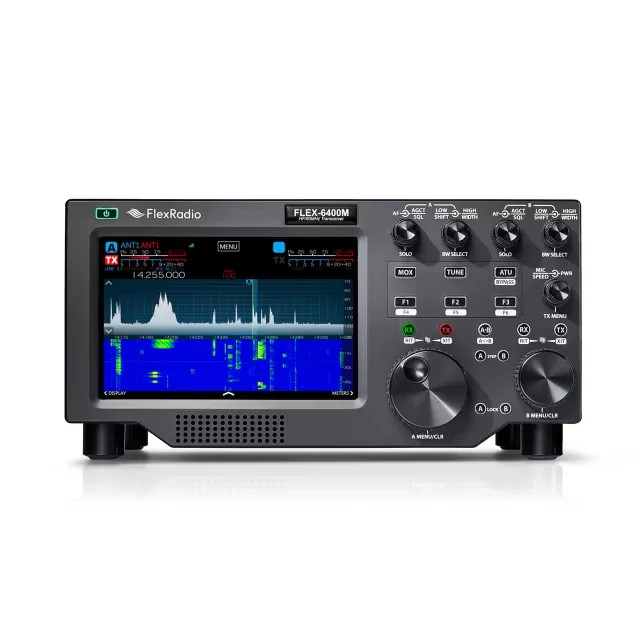

FlexRadio FLEX-6400 firmware
FlexRadio · FLEX-6400 · FLEX-6400 · SDR transceiver
Latest firmware for the FlexRadio FLEX-6400 is v4.3.16 (October 13, 2026).
Specifications
FLEX-6400 specifications
- Type
- Amateur HF/VHF SDR transceiver
- Frequency range
- TX: 10-160 m + WARC / 6 m / RX: 0.03-54 MHz
- Modes
- AM / Sync-AM / FM / SSB / CW / RTTY (DV option)
Show the full specification Hide the full specification
General
- Mode
- AM / Sync-AM / FM / SSB / CW / RTTY (DV option)
- Type
- Amateur HF/VHF SDR transceiver
- Weight
- ? Kg (? lb)
- Power supply
- 13.8 VDC ±15% (Anderson Powerpole connectors)
- Tuning steps
- Down to 1 Hz
- Other features
- Two USB2 ports. Two independent receivers. Two 7 MHz panafall displays. LAN port. Full duplex operation. Full QSK. Integrated remote operation.
- Frequency range
- TX: 10-160 m + WARC / 6 m RX: 0.03-54 MHz
- Dimensions (W*H*D)
- 350*171*337 mm (14*6.74*13.25")
- Frequency stability
- ±? ppm
- Repeater shift / offset
- Depending on software
- Channels / memory management
- Depending on software
- Antenna impedance / connector
- 50 ohm / Two SO-239. One BNC (RX only). One BNC (Transverter)
- Current drain / power consumption
- RX: Max 1.7 A TX: Max 23 A
Miscellaneous
- Manufactured
- 2017-202x
Receiver Section
- Receiver system
- Direct digital sampling ADC sampling rate: 122.88 Msps ADC resolution: 16 bit
- AF output power / speaker
- No built-in amplifier or speaker
- External speaker connector
- No
Transmitter Section
- RF output power
- 1-100 W (AM: 1-25 W)
- Modulation system
- Digital low power at carrier frequency
- Spurious emissions
- Better than -? dB
- Microphone input level
- ? mV
- Max FM deviation (Factory set)
- FM: ±5 KHz NFM: ±2.5 KHz
- Microphone impedance / connector
- 600 ohm (Nominal) / ?-pin (3.5 mm)
Changelog
FLEX-6400 firmware changelog
-
v4.2.20v4.3.16Adds AutoDX for automated CW split pile-up work, Auto AGC-T for automatic AGC threshold setting, and a new DSP Controls panel for noise… -
v4.2.18v4.2.20Unlocks band plans, configurable RX filters, and TX filter display for licensed users; introduces DAXv2 audio improvements. -
v4.1.5v4.2.18Introduces DAXv2 audio architecture with improved latency and adds 64-bit platform support. -
v4.1.3v4.1.5Fixes S-meter pegging with ESC, audio control consistency, and DVK playback transitions. -
v4.0.1v4.1.3Enables advanced noise reduction, voice keyer, and CW auto-tune for SmartSDR+ feature license holders. -
v3.10.15v4.0.1New noise mitigation, voice recording, and CW auto-tuning -
v3.10.10v3.10.15Fixes CW keying, transmit power, and monitor audio issues. -
v3.9.19v3.10.10SmartSignal performance improvements, CWX Remote Sidetone support, and fixes for band persistence, VOX, and CW issues. -
v3.9.18v3.9.19Bug fixes for SmartControl display, CAT frequency tracking, and interlock messages. -
v3.8.23v3.9.18Introduces SmartSignal adaptive pre-distortion beta, analog meter display, USB serial pass-through, and two-tone generator.
Firmware history
All versions below were published by FlexRadio on flexradio.com. Third-party and modified firmware is never listed.
-
Adds AutoDX for automated CW split pile-up work, Auto AGC-T for automatic AGC threshold setting, and a new DSP Controls panel for noise… — summary by updatemystuff.com
Source:
flexradio.comRelease notes & downloadShow release notes Hide release notes
Page 1 | Copyright 2026 FlexRadio, Inc. | SmartSDR v4.3.16 Release Notes | SmartSDR+ v4.3.16 Release Notes Version Release Date Release Theme/Title 4.3.16 2026-10-13 AutoDX, Auto AGC-T, DSP Controls - Advanced and Noise Floor Range Adjustment SmartSDR Basic™ and SmartSDR+™ v4.3.16 is an Early Access software and firmware release for Aurora™, FLEX-8000™, and FLEX-6000™ series SDRs, as well as Maestro™.
This version supersedes all previous SmartSDR releases and is available to all users.
Access to new features introduced in this release is limited to SmartSDR+ Early Access feature license holders unless otherwise noted.
Important Release Information Before upgrading, please review all sections marked as IMPORTANT for upgrade prerequisites and other critical information.
There are multiple important notices associated with SmartSDR v4.3.16.
You should understand these changes before upgrading from a previous version of SmartSDR.
Please open a HelpDesk support ticket if you have questions.
Important Notice: SmartSDR v4.2.18 introduced a new software architecture with updated DAX and FlexVSP drivers.
Leaving older versions on your PC may cause installation conflicts or degraded performance.
If you are running SmartSDR v4.1.5 or earlier, we strongly recommend completely uninstalling all previous versions of SmartSDR, including the DAX and FlexVSP drivers, before upgrading to SmartSDR v4.3.16.
If you are running v4.2.18 or later, you can skip this notice.
For detailed uninstall and installation instructions, see the HelpDesk article "How to Install SmartSDR v4.2.18." When following those steps, substitute v4.3.16 for v4.2.18.
Important Notice: The DVK Function Key memories in Maestro/M will be deleted as part of the v4.3.16 upgrade, due to resolving several problems in the v4.2 code that have since been fixed.
Migration would have carried the problems forward.
New v4.3.16 Features at a Glance Feature Needed Feature License Supported Radio Models AutoDX (ADX) SmartSDR+ (Early Access) FLEX-8000 Series, Aurora Auto AGC-T SmartSDR+ (Early Access) FLEX-6000 Series, FLEX-8000 Series, Aurora Expanded DSP Algorithm Controls SmartSDR+ (advanced parameters) Basic (on/off and level settings) All models (NRF, NRS, and RNN: FLEX-8000 Series and Aurora only) Noise Floor Range SmartSDR+ FLEX-8000 Series, Aurora CW Profiles SmartSDR Basic FLEX-6000 Series, FLEX-8000 Series, Aurora PTT Override SmartSDR Basic FLEX-6000 Series, FLEX-8000 Series, Aurora Toggle Breakin F-Key SmartSDR Basic M-Models and radios connected to a Maestro NTP Time Sources SmartSDR Basic FLEX-8000 Series, Aurora Confirm Exit (CAT and DAX) SmartSDR Basic All models (SmartSDR CAT and DAX) Page 2 | Copyright 2026 FlexRadio, Inc. | SmartSDR v4.3.16 Release Notes | SmartSDR+ v4.3.16 New SmartSDR+ and Basic Features: As noted below, radios licensed for SmartSDR+ will gain access to the new SmartSDR+ features approximately 30 days after this Early Access release, with a follow-up release of SmartSDR v4.3.
Feature Description AutoDX (ADX) SmartSDR+ Early Access.
FLEX-8000 Series and Aurora radios AutoDX decodes received CW to on-screen text and can automatically work a split pile-up on your behalf.
Enter the DX callsign and your exchange, and AutoDX listens for the DX station, calls when it hears the selected trigger, sends your exchange when the DX station comes back to you, and counts the completed QSO.
Decoded traffic stays on screen, and keying the paddle or CWX hands control back to you instantly.
- Requires two CW Slices on different frequencies (one TX enabled) and a callsign set on the radio.
- Adjustable TX delay, reply delay, call attempts, give-up timer, and automatic restart.
- Built-in CW decoder with WPM, SNR, and lock indication, usable with or without AutoDX enabled.
- Available in SmartSDR for Windows (ADX window) and on Maestro and M-Models (AUTODX panel and Toggle AutoDX F-Key).
Operating Instructions: How to Use the AutoDX (ADX) Feature Auto AGC-T SmartSDR+ Early Access.
FLEX-6000 Series, FLEX-8000 Series, and Aurora radios.
Auto AGC-T sets the AGC Threshold for each Slice automatically from a long-term measurement of the adjacent noise floor, keeping the threshold well set as you change bands and antennas and as band conditions change.
It ignores short-term transients such as lightning crashes.
Auto AGC-T is off by default and is enabled per Slice; adjusting AGC-T by hand returns the Slice to manual control.
Operating Instructions: How to Use the Auto AGC-T Feature Expanded DSP Algorithm Controls Advanced parameters: SmartSDR+.
All models except where noted.
On/off and levels: SmartSDR Basic.
The noise mitigation algorithms now have a dedicated DSP Controls Panel, opened from the Slice menu.
The panel provides an on/off button and a level slider for most of them.
An Advanced menu adds per-algorithm parameters (such as delay, window, taps, leakage, and tone thresholds) for NR, NRL, NRF, ANF, ANFL, and ANFT.
The panel shows only the algorithms that apply to the current mode, and Reset All returns parameters to their defaults.
Radios that received the v4.0.1 algorithms also receive these controls, including radios whose SmartSDR+ license has since expired.
Operating Instructions: How to Use the DSP Controls Panel Page 3 | Copyright 2026 FlexRadio, Inc. | SmartSDR v4.3.16 Release Notes | Noise Floor Range Adjustment SmartSDR+.
FLEX-8000 Series and Aurora radios.
Noise Floor Range enhances Relative Noise Floor Scaling by setting how far the measured noise floor may move before the Panadapter repositions, from 0 to 10 dB in 0.5 dB steps (default 1.5 dB).
Increasing the range reduces the display oscillation that can occur at high zoom levels.
The setting is in the Display menu and applies to all Panadapters.
Radios that received Relative Noise Floor Scaling in v4.0.1 also receive this feature.
Operating Instructions: How to Set Noise Floor Range CW Profiles SmartSDR Basic.
FLEX-6000 Series, FLEX-8000 Series, and Aurora radios.
A new CW profile type joins the Global, Transmit, and Microphone profiles.
CW profiles store keyer settings (pitch, speed, iambic mode, paddle swap, break-in, and more), sidetone settings, and CWX settings including macros.
Profiles can be created, loaded, switched from the TX panel or TX menu, auto-saved, and imported or exported.
Operating Instructions: How to Use CW Profiles PTT Override SmartSDR Basic.
All models.
PTT Override selects which audio source a hardware PTT (RCA or footswitch, ACC, or mic jack) puts on the air.
When enabled, hardware PTT transmits the last used analog mic input even while DAX or remote TX audio is selected.
- Behavior change: Before v4.3, hardware PTT always switched to the analog mic input. PTT Override is now disabled by default, so hardware PTT transmits the selected source. Enable PTT Override to restore the earlier behavior.
Operating Instructions: How to Set PTT Override Toggle Breakin F-Key SmartSDR Basic.
M-Models and any radio connected to a Maestro.
A new Toggle Breakin F-Key action turns CW Breakin on and off with one key press.
The F-Key LED follows the Breakin state.
Operating Instructions: How to Assign the Toggle Breakin F-Key NTP Time Sources SmartSDR Basic.
FLEX-8000 Series and Aurora radios; configured from SmartSDR for Windows.
A new NTP tab in Radio Setup lets you configure up to 10 NTP servers, pools, or peers for the radio clock, mark preferred sources, and monitor each source’s status, stratum, and reachability.
The radio ships with a default Debian NTP pool, which is re-created automatically if no sources are configured.
When a GPSDO is installed and delivering time, it takes priority, and the NTP sources act as a fallback.
Operating Instructions: How to Configure NTP Time Sources Confirm Exit for SmartSDR CAT and DAX SmartSDR Basic.
SmartSDR CAT and SmartSDR DAX.
A Confirm Exit setting in the CAT and DAX Settings menus makes the close confirmation dialog optional.
It is on by default, so existing behavior is unchan
-
Unlocks band plans, configurable RX filters, and TX filter display for licensed users; introduces DAXv2 audio improvements. — summary by updatemystuff.com
Source:
flexradio.comRelease notes & downloadShow release notes Hide release notes
Page 1 | Copyright 2026 FlexRadio, Inc. | SmartSDR v4.2.20 Release Notes | SmartSDR+ v4.2.20 Release Notes Version Release Date Release Theme/Title 4.2.20 2026-06-03 v4.2 new feature access for SmartSDR+ licensed radios.
SmartSDR Basic™ and SmartSDR+™ v4.2.20 is a SmartSDR+ Feature Access software and firmware release for Aurora™, FLEX-8000™, and FLEX-6000™ series SDRs, as well as Maestro™.
This version supersedes all previous SmartSDR releases and is available to all users.
Access to new features in this release is available to all SmartSDR+ feature license holders.
Important Release Information Before upgrading, please review all sections marked as IMPORTANT for upgrade prerequisites and other critical information.
There are multiple important notices associated with SmartSDR v4.2.20.
You should understand these changes before upgrading from a previous version of SmartSDR.
Please open a HelpDesk support ticket if you have questions.
Important Notice: If you are not running SmartSDR v4.2.18, it is highly recommended to uninstall all previous versions of SmartSDR before upgrading to SmartSDR v4.2.20.
If you are running SmartSDR v4.2.18, skip this notice.
Before installing SmartSDR v4.2.20, it is strongly recommended that all previous versions of SmartSDR be completely uninstalled from your PC, including DAX and the FlexVSP driver.
SmartSDR v4.2.18 introduces a new software architecture that includes updated DAX and FlexVSP drivers.
Retaining older versions on your system may result in installation conflicts or degraded performance.
For best results, ensure all earlier SmartSDR versions (v4.1.5 and below) are fully removed before proceeding with the installation.
Refer to the HelpDesk article “How to Install SmartSDR v4.2.18” for detailed uninstallation and installation instructions.
Just bear in mind that you will be substituting v4.2.20 for v4.2.18 Important Notice: SmartSDR v4.2.20 is a Feature Access Release.
This version of SmartSDR activates the new features included in SmartSDR v4.2.18 for all radios that have a SmartSDR+ Feature license installed.
It also contains bug fixes; it is recommended that all users upgrade to SmartSDR v4.2.20.
For information regarding the new features introduced in SmartSDR v4.2.18, please refer to the SmartSDR v4.2.18 Release Notes.
Remember is it's “best practice” to read the SmartSDR Release Notes before installing a new version.
Important Notice: Upgraded DAX to a completely new audio transfer architecture.
Starting with SmartSDR v4.2.18, the DAX functionality has been completely re-architected and is now called DAXv2.
This update delivers significant architectural improvements, enhanced low-latency performance, and improved compatibility and stability with modern Windows systems.
DAXv2 is available for all users.
In addition, DAXv2 is available as a native x64 and ARM application.
The new DAX driver no longer relies on deferred procedure calls (DPCs) for transferring audio data from the radio to PC applications.
For a complete listing of changes, refer to the HelpDesk article DAX Version 2 - Improvements and Updates.
Important Notice: SmartSDR for Windows utilizes a Microsoft Installer (MSI)–based installation package.
Upgrading to an MSI installer architecture provides a standardized installation environment that can automatically detect and repair missing/corrupted components (“self-healing”) if files go missing.
It will install any needed .NET and system dependency software often without user interaction.
Page 2 | Copyright 2026 FlexRadio, Inc. | SmartSDR v4.2.20 Release Notes | SmartSDR+ v4.2.20 New SmartSDR+ Features: These are the new features introduced in the SmartSDR+ v4.2.18 Early Access release that are now available to all SmartSDR+ Feature License holders.
Feature Description Supported Radio Models
SMART-205
Band Plan/Band Edge Markers: SmartSDR now includes an integrated band plan display feature that provides a visual, color-coded representation of amateur radio frequency allocations based on IARU regional standards, including detailed sub- band information on the panadapter.
This feature gives operators a clear, at-a- glance understanding of band usage recommendations directly within SmartSDR, helping ensure compliant and efficient operation across different international band plans.
Band plans for IARU Region 1, Region 2, and Region 3 can be selected from the panadapter display menu, providing an optional context-aware display based on the selected or active region, showing clearly defined sub-band segments within each amateur band.
The default IARU region is based on the radio’s region setting.
Aurora
FLEX-8000
FLEX-6000
SMART-11334
User Configurable RX Filters: SmartSDR now includes mode-specific, user configurable receive filters, allowing operators to tailor receiver bandwidth characteristics independently for each operating mode.
This enhancement provides greater flexibility and precision in tailoring audio and signal response for different types of operation, such as SSB, CW, AM, FM, and digital modes.
Additional benefits include reducing the need to manually reconfigure filters when changing modes and allowing users to fine-tune receive filter characteristics for contesting, DXing, or digital operation.
Aurora
FLEX-8000
FLEX-6000
SMART-12046
Display TX Filter on Panadapter: SmartSDR now includes an optional feature that displays the transmit filter bandwidth directly on the panadapter, with an additional on-screen overlay indicator.
This allows for real-time tracking of transmit filter bandwidth changes as mode or bandwidth settings are adjusted.
From an operational standpoint, this feature provides immediate visual confirmation of transmit signal bandwidth, helping operators ensure transmitted energy remains within the ham bands, which is particularly useful when operating near band edges.
Aurora
FLEX-8000
FLEX-6000
Page 3 | Copyright 2026 FlexRadio, Inc. | SmartSDR v4.2.20 Release Notes | SmartSDR Bug Fix Highlights: Below are the bug fixes highlights for SmartSDR v4.2.20.
Some bug fixes may be specific to radio hardware platforms and SmartSDR+ feature license holders.
Please refer to the SmartSDR v4 Changelog for a complete listing of all SmartSDR v4 software and firmware changes.
Feature/Defect Description SMART-12729 Fixed: FDX does not work with single SCU radios.
SMART-12734 Changed default CW Receive Filter presets to 50 Hz, 100 Hz, 250 Hz, 500 Hz, 1 kHz, and 3 kHz.
The 1 kHz and 3 kHz options are now pitch aware.
Reset factory settings after updating to v4.2.19 to expose new default values.
SMART-12738
Fixed receive audio going silent after 30 seconds to 2 minutes of connection to SSDR and Maestro in some setups SMART-12758 Changed default Digital Receive Filter presets to 100 Hz, 300 Hz, 600 Hz, 1 kHz, 3 kHz, 6 kHz. Reset factory settings after updating to v4.2.19 to expose new default values.
SMART-12780
- Fixed Maestro drops remote audio after ~3 min.
- SMART-12747 Mic Gain Slider now adjusts the PC Mic
- SMART-12735 Restored the Offset menu item in the Slice Flag DSP Menu when set to Digital modes
SMART-12536
Fixed an issue where the TGXL Tune command from SmartSDR and API was not triggering Tune
SMART-12748
Fixed an issue with 6000 Series Radios where receive audio would not come back promptly after keying CW with some setups. SMART-12772 XVTR output power now scales with the RF Power setting
SMART-12743
Fixed an issue where the Tune button didn't trigger Tune on some XVTR bands Page 4 | Copyright 2026 FlexRadio, Inc. | SmartSDR v4.2.20 Release Notes | Description of SmartSDR Basic, SmartSDR+, and SmartSDR+ Early Access Feature License Tiers: SmartSDR v4 Basic is available free of charge and includes all bug fixes and select minor feature enhancements for all radio models.
We strongly encourage all customers to upgrade to SmartSDR v4.
If you are currently licensed for SmartSDR v2 and upgrade to SmartSDR v4 Basic, you will receive all prior bug fixes and minor enhancements from a
-
Introduces DAXv2 audio architecture with improved latency and adds 64-bit platform support. — summary by updatemystuff.com
Source:
flexradio.comRelease notes & downloadShow release notes Hide release notes
Page 1 | Copyright 2026 FlexRadio, Inc. | SmartSDR v4.2.18 Release Notes | SmartSDR+ v4.2.18 Release Notes Version Release Date Release Theme/Title 4.2.18 2026-04-28 DAXv2. 64-bit SmartSDR, DAX, and CAT.
Band Plan & RX Filter Presets SmartSDR Basic™ and SmartSDR+™ v4.2.18 is an Early Access software and firmware release for Aurora™, FLEX-8000™, and FLEX-6000™ series SDRs, as well as Maestro™.
This version supersedes all previous SmartSDR releases and is available to all users.
Access to new features introduced in this release is limited to SmartSDR+ Early Access feature license holders unless otherwise noted.
Important Release Information Before upgrading, please review all sections marked as IMPORTANT for upgrade prerequisites and other critical information.
There are multiple important notices associated with SmartSDR v4.2.18.
You should understand these changes before upgrading from a previous version of SmartSDR.
Please open a HelpDesk support ticket if you have questions.
Important Notice: It is highly recommended to uninstall all previous versions of SmartSDR before upgrading to SmartSDR v4.2.18.
Prior to installing SmartSDR v4.2.18, it is strongly recommended that all previous versions of SmartSDR be completely uninstalled from your PC, including DAX and the FlexVSP driver.
SmartSDR v4.2.18 introduces a new software architecture that includes updated DAX and FlexVSP drivers.
Retaining older versions on your system may result in installation conflicts or degraded performance.
For best results, ensure all earlier SmartSDR versions (v4.1.5 and below) are fully removed before proceeding with the installation.
Refer to the HelpDesk article “How to Install SmartSDR v4.2.18” for detailed uninstallation and installation instructions.
Important Notice: SmartSDR for Windows supports both x64 and ARM processor platforms.
We are excited to announce expanded platform support for SmartSDR for Windows, DAX, and CAT, including their respective audio and virtual comm port drivers, with the introduction of native compatibility for both x64 (64-bit) and ARM-based processors.
These new features are available for all users.
The x64 version of SmartSDR for Windows replaces legacy 32-bit support, aligning with modern Windows standards and improving overall system efficiency.
This enhancement ensures that SmartSDR can take full advantage of the evolving Windows hardware ecosystem.
When downloading SmartSDR for Windows, make sure that you select the correct installer that aligns with your PC's processor architecture by referring to the HelpDesk article Which SmartSDR Installer Do I Need to Download?
Important Notice: Upgraded DAX to a completely new audio transfer architecture.
Starting with SmartSDR v4.2.18, the DAX functionality has been completely re-architected and is now called DAXv2.
This update delivers significant architectural improvements, enhanced low-latency performance, and improved compatibility and stability with modern Windows systems.
DAXv2 is available for all users.
In addition, DAXv2 is available as a native x64 and ARM application.
The new DAX driver no longer relies on deferred procedure calls (DPCs) for transferring audio data from the radio to PC applications.
For a complete listing of changes, refer to the HelpDesk article DAX Version 2 - Improvements and Updates.
Page 2 | Copyright 2026 FlexRadio, Inc. | SmartSDR v4.2.18 Release Notes | Important Notice: Updated CAT FlexVSP Driver.
Starting with SmartSDR v4.2.18, the FlexVSP driver, used to create virtual comm ports, has been upgraded to be fully compatible with both x64 and ARM versions of Windows 11.
As with DAXv2, this update is available for all users.
Important Notice: SmartSDR for Windows utilizes a Microsoft Installer (MSI)–based installation package.
Upgrading to an MSI installer architecture provides a standardized installation environment that can automatically detect and repair missing/corrupted components (“self-healing”) if files go missing.
It will install any needed .NET and system dependency software often without user interaction.
SmartSDR+ v4.2.18 New SmartSDR+ Early Access Features: As noted below, radios licensed for SmartSDR+ will gain access to these new features approximately 30 days after this Early Access release with a follow-up release of SmartSDR v4.2.
Feature Description Supported Radio Models
SMART-205
Band Plan/Band Edge Markers: SmartSDR now includes an integrated band plan display feature that provides a visual, color-coded representation of amateur radio frequency allocations based on IARU regional standards, including detailed sub- band information on the panadapter.
This feature gives operators a clear, at-a- glance understanding of band usage recommendations directly within SmartSDR, helping ensure compliant and efficient operation across different international band plans.
Band plans for IARU Region 1, Region 2, and Region 3 can be selected from the panadapter display menu, providing an optional context-aware display based on the selected or active region, showing clearly defined sub-band segments within each amateur band.
The default IARU region is based on the radio’s region setting.
Aurora
FLEX-8000
FLEX-6000
SMART-11334
User Configurable RX Filters: SmartSDR now includes mode-specific, user configurable receive filters, allowing operators to tailor receiver bandwidth characteristics independently for each operating mode.
This enhancement provides greater flexibility and precision in tailoring audio and signal response for different types of operation, such as SSB, CW, AM, FM, and digital modes.
Additional benefits include reducing the need to manually reconfigure filters when changing modes and allowing users to fine-tune receive filter characteristics for contesting, DXing, or digital operation.
Aurora
FLEX-8000
FLEX-6000
SMART-12046
Display TX Filter on Panadapter: SmartSDR now includes an optional feature that displays the transmit filter bandwidth directly on the panadapter, with an additional on-screen overlay indicator.
This allows for real-time tracking of transmit filter bandwidth changes as mode or bandwidth settings are adjusted.
From an operational standpoint, this feature provides immediate visual confirmation of transmit signal bandwidth, helping operators ensure transmitted energy remains within the ham bands, which is particularly useful when operating near band edges.
Aurora
FLEX-8000
FLEX-6000
Page 3 | Copyright 2026 FlexRadio, Inc. | SmartSDR v4.2.18 Release Notes | New SmartSDR Basic Features: The following features are available to all users regardless of the SmartSDR feature license version installed on the radio hardware. Feature Description Supported Radio Models
SMART-12134
TURF Changes: New 60m allocation for the US. A new US TURF file is not needed to utilize the new 60m frequency allocation. Aurora
FLEX-8000
FLEX-6000
SMART-11748
- New ARM processor support for SmartSDR for Windows, SmartSDR, CAT, DAX, and
- FlexVSP drivers
- Aurora
FLEX-8000
FLEX-6000
SMART-11323
Added support for an external sampler for use with SmartSignal (aka “APD”) when operating with external amplifiers.
This enhancement enables the radio to use a real-time RF sample from the amplifier output, allowing it to measure and correct distortion introduced after amplification.
The result is improved linearity and cleaner signal performance, particularly at higher power levels.
Aurora
FLEX-8000
SMART-12206
Added APD Reset Button - This will clear the current solution and look for another Aurora
FLEX-8000
SMART-12223
Added new Waveform Deployments. You can now utilize our open API and Docker container to deploy waveforms on your radio. Aurora
FLEX-8000
- Page 4 | Copyright 2026 FlexRadio, Inc. | SmartSDR v4.2.18 Release Notes |
- SmartSDR Bug Fix Highlights:
- Below are the bug fixes highlights for SmartSDR v4.2.18. Some bug fixes may be specific to radio hardware platforms and
- SmartSDR+ feature license holders.
- Please refer to the SmartSDR v4 Changelog for a complete l
-
Fixes S-meter pegging with ESC, audio control consistency, and DVK playback transitions. — summary by updatemystuff.com
Source:
flexradio.comRelease notes & downloadShow release notes Hide release notes
Page 1 | Copyright 2025 FlexRadio, Inc. | SmartSDR v4.1.5 Release Notes | SmartSDR+ v4.1.5 Release Notes Version Release Date Release Theme/Title 4.1.5 2025-12-16 SmartSDR v4 Bug Fix Release SmartSDR Basic™ and SmartSDR+™ v4.1.5 is a software and firmware release for Aurora™, FLEX-8000™, and FLEX-6000™ series of software defined radios (SDRs), and the Maestro™.
This version supersedes all previous versions of SmartSDR.
Description of SmartSDR Basic, SmartSDR+, and SmartSDR+ Early Access Feature License Tiers: SmartSDR v4 Basic is available free of charge and includes all bug fixes and select minor feature enhancements for all radio models.
We strongly encourage all customers to upgrade to SmartSDR v4.
If you are currently running SmartSDR v2 and upgrade to SmartSDR v4 Basic, you will receive all prior bug fixes and minor enhancements from all previous versions.
However, please note that multiFlex, the major feature introduced in SmartSDR v3, is not included in SmartSDR v4 Basic for radios licensed for SmartSDR v2.
For radios licensed for SmartSDR v1, the SmartLink feature introduced in SmartSDR v2, along with the multiFlex, is not included in SmartSDR v4 Basic.
SmartSDR+ is an optional one-year new feature license.
When you purchase a SmartSDR+ feature license, you gain or retain access to all prior SmartSDR v2 and v3 major features, as well as all new SmartSDR v4 major features released during your one-year license period.
All new SmartSDR v4 features are only available immediately for SmartSDR+ Early Access feature license radios.
Radios that have a SmartSDR+ feature license will gain access to the new features approximately 30 days later with a follow-up SmartSDR v4 feature access software release.
To get the new SmartSDR v4 features immediately, a SmartSDR+ Early Access license is required (see below).
When your one-year feature license expires, you retain all features received during that period—you never lose them.
To gain access to any new features introduced after your license period ends, simply renew your SmartSDR+ license for an additional year.
SmartSDR+ Early Access is an optional one-year SmartSDR+ feature license that provides all the benefits of SmartSDR+, with the added advantage of early access to new features approximately 30 days before they are available for standard SmartSDR+ feature license holders.
As part of the Early Access Program, participants are invited to share feedback with the software engineering and product management teams based on their experience with the preview software.
This collaboration helps shape and refine future SmartSDR releases.
Important Release Information Before upgrading, please read all sections marked as IMPORTANT for upgrade prerequisites and other important information.
Important Notice: Beginning with SmartSDR v4.0.1, the SmartSDR hardware license installed on your radio must be revalidated or updated after purchasing a SmartSDR+ Feature License by connecting to the SmartSDR License Server.
To complete this process, ensure that your radio is connected to a network with Internet access.
The radio will automatically download any new licenses when it is booted.
Once your SmartSDR license has been successfully validated, the radio will not need to reconnect to the License Server unless you purchase a new SmartSDR+ feature license.
Page 2 | Copyright 2025 FlexRadio, Inc. | SmartSDR v4.1.5 Release Notes | SmartSDR+ v4.1.5 New SmartSDR+ Early Access Features: There are no SmartSDR+ Early Access Features included in this software release.
New SmartSDR+ Features: There are no SmartSDR+ Features included in this software release.
New SmartSDR Bug Fixes: Below are the new minor feature enhancements and bug fixes available to all radios running SmartSDR Basic.
Some bug fixes will be specific to SmartSDR+ features and not available to SmartSDR Basic license holders.
Please refer to the SmartSDR v4 Changelog for a complete listing of all SmartSDR v4 software and firmware changes.
Feature/Defect Description
SMART-11954
Fixed an issue where toggling ESC would peg the S-meter on FLEX-6000 Series Radios
SMART-12099
Fixed DIV ESC slice audio controls to be consistent with the operation intent (SmartSDR-Win)
SMART-12118
Fixed an issue where profiles with DIV access were restored with DIV ESC enabled
SMART-12129
Fixed multiFLEX DVK playback not properly transitioning from transmit back to receive Page 3 | Copyright 2025 FlexRadio, Inc. | SmartSDR v4.1.5 Release Notes | SmartSDR v4 Best Practices Best Practices for Installing SmartSDR Always back up your Global, TX (transmit), and Microphone Profiles.
For detailed instructions on exporting your profiles to a file on your PC, refer to the SmartSDR for Windows Software User’s Guide.
It is recommended to export all profiles before upgrading to v4.1.5.
Maintaining a good set of profile exports as backups is always a best practice.
Moving back and forth between different versions of SmartSDR may result in data loss unless you have a backup (export) of your Profiles.
Ensure your Windows operating system is up to date before installing SmartSDR for Windows.
The proper operation of SmartSDR for Windows and its associated drivers relies on having an up-to-date and supported Windows operating system, including the root security certificates.
It is strongly recommended that you run Windows Update and install all mandatory and optional updates before installing SmartSDR for Windows.
Power cycle the radio before installing a new version of SmartSDR for Windows.
To ensure a seamless upgrade, it is recommended that you power cycle your radio before installing the SmartSDR for Windows software on your PC and updating the radio firmware. “Cold Boot” the radio after upgrading the radio firmware.
Using the power button, shut down the radio, then disconnect it from DC power for approximately 30 seconds.
This procedure “cold boots” the radio and helps ensure proper operation.
Once DC power is restored to the radio, wait 2 minutes to ensure all internal processors have booted up completely before booting your radio.
Managing SmartSDR installed on other devices.
If using Maestro or other PCs running SmartSDR for Windows, update all devices at the same time to ensure a consistent operating experience and to avoid radio firmware upgrade/downgrade delays.
Always perform a Factory Reset of your Radio when Downgrading the Radio Firmware: In general, downgrading to a previous version of SmartSDR is not recommended.
The database in the Aurora, FLEX-8000, and FLEX-6000 is NOT backwards compatible.
This means if you downgrade the firmware in your radio, you must perform a Factory Reset to ensure the internal database is consistent with the version of SmartSDR firmware that is running on the radio.
Important: If the radio is not operating properly immediately after upgrading, please perform a factory reset and refrain from importing any exported profiles.
The database may be inconsistent and require resetting to a default state.
The procedure for performing a Radio Cold Boot and Factory Reset is described below.
In addition to performing a Factory Reset on the radio, you mustn't import a database using a profile export that is greater than the version you are using with your radio.
The profile export file name contains the version of SmartSDR that was running when the export was saved to your PC for easy version identification.
Best Practices for installing SmartSDR for an “M” Model or Maestro The following best practices are applicable only when installing a new version of SmartSDR on a Maestro.
Both the Maestro and “M’ Model radios must have network access that allows connectivity to the Internet to download the new SmartSDR software.
Ensure your Maestro has a reliable power source.
Make certain the supplied AC adapter is used to power the unit.
This prevents the Maestro from losing power during an update.
Ensure your Maestro has a reliable network connection.
The Maestro and radio firmware ar
-
Enables advanced noise reduction, voice keyer, and CW auto-tune for SmartSDR+ feature license holders. — summary by updatemystuff.com
Source:
flexradio.comRelease notes & downloadShow release notes Hide release notes
Page 1 | Copyright 2025 FlexRadio, Inc. | SmartSDR v4.1.3 Release Notes | SmartSDR+ v4.1.3 Release Notes Version Release Date Release Theme/Title 4.1.3 2025-12-03 Aurora Support and SmartSDR+ v4.0.1 Feature Activation SmartSDR Basic™ and SmartSDR+™ v4.1.3 is a software and firmware release for Aurora™, FLEX-8000™, and FLEX-6000™ series of software defined radios (SDRs), and the Maestro™.
This version supersedes all previous versions of SmartSDR.
Description of SmartSDR Basic, SmartSDR+, and SmartSDR+ Early Access Feature License Tiers: SmartSDR v4 Basic is available free of charge and includes all bug fixes and select minor feature enhancements for all radio models.
We strongly encourage all customers to upgrade to SmartSDR v4.
If you are currently running SmartSDR v2 and upgrade to SmartSDR v4 Basic, you will receive all prior bug fixes and minor enhancements from all previous versions.
However, please note that multiFlex, the major feature introduced in SmartSDR v3, is not included in SmartSDR v4 Basic for radios licensed for SmartSDR v2.
For radios licensed for SmartSDR v1, the SmartLink feature introduced in SmartSDR v2, along with the multiFlex, is not included in SmartSDR v4 Basic.
SmartSDR+ is an optional one-year new feature license.
When you purchase a SmartSDR+ feature license, you gain or retain access to all prior SmartSDR v2 and v3 major features, as well as all new SmartSDR v4 major features released during your one-year license period.
All new SmartSDR v4 features are only available immediately for SmartSDR+ Early Access feature license radios.
Radios that have a SmartSDR+ feature license will gain access to the new features approximately 30 days later with a follow-up SmartSDR v4 software release.
To get the new SmartSDR v4 features immediately, a SmartSDR+ Early Access license is required (see below).
When your one-year feature license expires, you retain all features received during that period—you never lose them.
To gain access to any new features introduced after your license period ends, simply renew your SmartSDR+ license for an additional year.
SmartSDR+ Early Access is an optional one-year SmartSDR+ feature license that provides all the benefits of SmartSDR+, with the added advantage of early access to new features approximately 30 days before they are available for standard SmartSDR+ feature license holders.
As part of the Early Access Program, participants are invited to share feedback with the software engineering and product management teams based on their experience with the preview software.
This collaboration helps shape and refine future SmartSDR releases.
Important Release Information Before upgrading, please read all sections marked as IMPORTANT for upgrade prerequisites and other important information.
Important Notice: Beginning with SmartSDR v4.0.1, the SmartSDR hardware license installed on your radio must be revalidated or updated after purchasing a SmartSDR+ Feature License by connecting to the SmartSDR License Server.
To complete this process, ensure that your radio is connected to a network with Internet access.
The radio will automatically download any new licenses when it is booted.
Once your SmartSDR license has been successfully validated, the radio will not need to reconnect to the License Server unless you purchase a new SmartSDR+ feature license.
Page 2 | Copyright 2025 FlexRadio, Inc. | SmartSDR v4.1.3 Release Notes | SmartSDR+ v4.1.3 New SmartSDR+ Early Access Features: There are no SmartSDR+ Early Access Features included in this software release.
New SmartSDR+ Features: Below are the SmartSDR+ Early Access 4.0.1 features now enabled for SmartSDR+ Feature License users.
Feature Description Supported Radio Models
SMART-11431
New DSP Noise Mitigation: We have updated and added a variety of new noise reduction/mitigation algorithms to the Aurora, FLEX-8000, and FLEX-8000 series radios.
The new noise mitigation features are designed to cater to different types of noises, environments, and setups.
Multiple Noise Mitigation functions can be used simultaneously.
Toggle the various noise mitigation functions on and off to taste.
NRF
1
- Spectral Subtraction Filtering Algorithm
NRS
1
- Spectral Subtraction with Voice Detection
RNN
1
- AI Noise Reduction
NRL
1,2
- NR algorithm using LMS (Least Mean Squares)
ANFL
1,2
- ANF algorithm using LMS
ANFT
1,2
- ANF algorithm using FFT (Fast Fourier Transform) 1 Aurora 1 FLEX-8000s 2 FLEX-6000s
SMART-3985
Digital Voice Keyer: Digital Voice Keyer (DVK) allows recording, playback, and transmission of up to 12 voice recordings stored on the radio. Aurora FLEX-8000s FLEX-6000s
SMART-10570
Enhanced Signal Clarity (ESC): ESC is a unique diversity reception feature that is only available on dual SCU radios.
Enhanced Signal Clarity (ESC) in diversity.
ESC combines signals from multiple antennas to optimize audio receive capabilities via beamforming/null forming.
Used to accentuate desired signals (constructive interference patterns) or to remove undesired signals (destructive interference patterns) to improve signal quality.
This does not affect the displayed panadapter or waterfall, but metering will be affected.
AU-520(M)
FLEX-8600(M)
FLEX-6700
FLEX-6600(M)
SMART-9958
Relative Noise Floor Scaling: This feature automatically adjusts the displayed noise floor to maintain a visually consistent reference level as you operate on different bands and antennas.
This feature makes it easier to compare signal strengths and visually interpret band conditions.
Aurora FLEX-8000s
SMART-11332
CW Auto Tune: Introducing CW Auto Tune.
CW Auto Tune automatically tunes the active slice receiver to CW signals within the passband, simplifying the process of locking onto CW transmissions.
There are two modes of operation: One-Shot or Intermittent Mode. One Shot - Auto tunes once to the highest signal on the click of the AUTOTUNE button Intermittent – Continuously auto-tunes to the highest signal every two seconds while the AUTOTUNE button remains enabled.
Aurora FLEX-8000s FLEX-6000s Page 3 | Copyright 2025 FlexRadio, Inc. | SmartSDR v4.1.3 Release Notes | New SmartSDR Basic Features and Bug Fixes: Below are the new minor feature enhancements and bug fixes available to all radios running SmartSDR Basic.
Please refer to the SmartSDR v4 Changelog for a complete listing of all SmartSDR v4 software and firmware changes.
Feature/Defect Description Software support of the Aurora radios AU-510(M) and AU-520(M)
SMART-12007
Improved database migration between updates. It is still required to factory reset your radio after a software downgrade
SMART-11578
Fixed NRL operational inconsistencies
SMART-11900
Fixed NR operational inconsistencies
SMART-11902
Fixed NR operation during transmit
SMART-12033
Fixed an issue where NR muted Slice B
SMART-11923
Fixed NR status message errors
SMART-11977
Fixed ANFT removing all audio when directly on top of an AM carrier
SMART-11986
Fixed ANFL not working on SSB
SMART-11987
Fixed NB for FLEX-6000 Series Radios
SMART-11744
Fixed an issue where DAX audio was briefly transmitted at the time of PTT
SMART-11799
Fixed a profile Import/Export bug
SMART-11995
Fixed the MIC and TX profile issue where not all settings were saved
SMART-11885
- Fixed issue affecting FLEX-6000 Series, where a snare drum-like noise would happen when turning
- NR off with NRL enabled
- SMART-11899 Moved the Maestro DVK menu up to just below Memory
SMART-11973
Fixed the Maestro DVK Menu needing to be scrolled to see the subscription notification
SMART-11974
Fixed Maestro DVK Menu displaying the keyboard, but not allowing edits
SMART-11998
- Fixed multiple F-key selections of DVK overriding each other
- SMART-11955 The Escape key now stops DVK playback in progress
SMART-12028
Improved error handling and reporting of DVK imports
SMART-12055
Improved DVK F-keys experience on Maestro
SMART-11910
- Fixed the brief display issue with blank panels when launching SmartSDR
- SMART-11914 Noise Mitigation options are now
-
New noise mitigation, voice recording, and CW auto-tuning — summary by updatemystuff.com
Source:
flexradio.comRelease notes & downloadShow release notes Hide release notes
Page 1 | Copyright 2025 FlexRadio, Inc. | SmartSDR v4.0.1 Release Notes | SmartSDR+ v4.0.1 Release Notes Version Release Date Release Theme/Title 4.0.1 2025-10-30 Noise Mitigation, DVK, CW Auto Tune & Panadapter Enhancement SmartSDR Basic™ and SmartSDR+™ v4.0.1 is a software and firmware release for Aurora, FLEX-8000, and FLEX-6000 series of software defined radios (SDRs), and the Maestro™.
This version supersedes all previous versions of SmartSDR.
Description of SmartSDR Basic, SmartSDR+, and SmartSDR+ Early Access Feature License Tiers: SmartSDR v4 Basic is available free of charge and includes all bug fixes and select minor feature enhancements for all radio models.
We strongly encourage all customers to upgrade to SmartSDR v4 Basic.
If you are currently running SmartSDR v2 and upgrade to SmartSDR v4 Basic, you will receive all prior bug fixes and minor enhancements from previous versions.
However, please note that MultiFlex—the major feature introduced in SmartSDR v3—is not included in SmartSDR v4 Basic for radios licensed for SmartSDR v2.
For radios licensed for SmartSDR v1, the SmartLink feature introduced in SmartSDR v2, along with the MultiFlex feature from SmartSDR v3, are not included in SmartSDR v4 Basic.
SmartSDR+ is an optional one-year new feature license.
When you purchase a SmartSDR+ feature license, you gain or retain access to all prior SmartSDR v2 and v3 major features, as well as all new SmartSDR v4 major features released during your one-year license period.
All new SmartSDR v4 features are only available immediately for SmartSDR+ Early Access feature license radios.
Radios that have a SmartSDR+ feature license will gain access to the new features ~30 days later with a subsequent software release.
To get the features immediately, a SmartSDR+ Early Access license is required.
When your one-year feature license expires, you retain all features received during that period—you never lose them.
To gain access to any new features introduced after your license period ends, simply renew your SmartSDR+ license for an additional year.
SmartSDR+ Early Access is an optional one-year SmartSDR+ feature license that provides all the benefits of SmartSDR+, with the added advantage of early access to new features 30 days before they are available for standard SmartSDR+ license holders by a subsequent software release.
As part of the Early Access Program, participants are invited to share feedback with the software engineering and product management teams based on their experience with the preview software.
This collaboration helps shape and refine future SmartSDR releases.
Important Release Information Before upgrading, please read all sections marked as IMPORTANT for upgrade prerequisites and other important information.
Important Notice: Beginning with SmartSDR v3.10.10, the SmartSDR hardware license installed on your radio must be revalidated by connecting to the SmartSDR License Server.
To complete this process, ensure that your radio is connected to a network with Internet access.
Once your SmartSDR license has been successfully validated, the radio will not need to reconnect to the License Server unless you purchase a new SmartSDR+ feature license.
Page 2 | Copyright 2025 FlexRadio, Inc. | SmartSDR v4.0.1 Release Notes | SmartSDR+ v4.0.1
New Features
As noted above, radios licensed for SmartSDR+ have new features automatically activated 30 days after each new SmartSDR version is released.
However, for the initial release of SmartSDR v4, the following features have been activated immediately for radios licensed for SmartSDR+.
Radios licensed for SmartSDR+ Early Access will have all new features activated immediately upon release. Relative Noise Floor Scaling Enhanced Signal Clarity (ESC) Feature Description Supported Radio Models
SMART-11431
New DSP Noise Mitigation: We have updated and added a variety of new noise reduction/mitigation algorithms to the Aurora, FLEX-8000 and FLEX-8000 series radios.
The new noise mitigation features are designed to cater to different types of noises, environments, and setups.
Multiple Noise Mitigation functions can be used simultaneously.
Toggle the various noise mitigation functions on and off to taste.
NRF
1
- Spectral Subtraction Filtering Algorithm
NRS
1
- Spectral Subtraction with Voice Detection
RNN
1
- AI Noise Reduction
NRL
1,2
- NR algorithm using LMS (Least Mean Squares)
ANFL
1,2
- ANF algorithm using LMS
ANFT
1,2
- ANF algorithm using FFT (Fast Fourier Transform) 1 Aurora 1 FLEX-8000s 2 FLEX-6000s
SMART-3985
Digital Voice Keyer: Digital Voice Keyer (DVK) allows recording, playback, and transmission of up to 12 voice recordings stored on the radio. Aurora FLEX-8000s FLEX-6000s
SMART-10570
Enhanced Signal Clarity (ESC): ESC is a unique diversity reception feature that is only available on dual SCU radios.
Enhanced Signal Clarity (ESC) in diversity.
ESC combines signals from multiple antennas to optimize audio receive capabilities via beamforming/nullforming.
Used to accentuate desired signals (constructive interference patterns) or to remove undesired signals (destructive interference patterns) to improve signal quality.
This does not affect the displayed panadapter or waterfall, but metering will be affected.
AU-520(M)
FLEX-8600(M)
FLEX-6700
FLEX-6600(M)
SMART-9958
Relative Noise Floor Scaling: This feature automatically adjusts the displayed noise floor to maintain a visually consistent reference level as you operate on different bands and antennas.
This feature makes it easier to compare signal strengths and visually interpret band conditions.
Aurora FLEX-8000s
SMART-11332
CW Auto Tune: Introducing CW Auto Tune.
CW Auto Tune automatically tunes the active slice receiver to CW signals within the passband, simplifying the process of locking onto CW transmissions.
There are two modes of operation: One-Shot or Intermittent Mode. One Shot - Autotunes once to the highest signal on the click of the AUTOTUNE button Intermittent – Continuously autotunes to the highest signal every two seconds while the AUTOTUNE button remains enabled.
Aurora FLEX-8000s FLEX-6000s Page 3 | Copyright 2025 FlexRadio, Inc. | SmartSDR v4.0.1 Release Notes | How To Use SmartSDR+ v4.0.1 Features: DSP - Noise Mitigation Features SmartSDR offers a variety of noise mitigation features to cater to different types of noises, environments, and setups.
Multiple Noise Mitigation functions can be used simultaneously.
Toggle the various noise mitigation functions on and off to taste.
The user interface has been simplified to on/off buttons for ease of use.
Noise Mitigation features available in previous versions of SmartSDR are available with the SmartSDR Basic license.
New Noise Mitigation features require SmartSDR+ or SmartSDR+ Early access.
In SmartSDR for Windows, Noise Mitigation features are available in the Slice’s DSP drop-down menu.
In Maestro/M-Model, Noise Mitigation features are available in the Slice menu.
SmartSDR Basic
- NR (Noise Reduction) - Same NR as before, but the algorithm has been improved - Useful for reducing uncorrelated “white” noise.
- NB (Noise Blanking) - Same NB as before - Useful for reducing fast rise time noise from sparks and other pulse-type sources
- ANF (Automatic Notch Filter) - Same ANF as before, but the algorithm is improved - Attenuates persistent unwanted signals.
- WNB (Wide Noise Blanker) - Same WNB as before, but this function is now only located in the Antenna menus.
SmartSDR+
- NRF - A Spectral Subtraction Filtering Algorithm - This algorithm continuously computes the probability of speech and noise for each frequency in the passband, along with a corresponding gain to remove the possible noise. This algorithm is intended for stationary noise that does not change rapidly. Only available on 8000 Series Radios.
- NRS - Spectral subtraction with Voice Activity Detection. Only available on 8000 Series Radios
- RNN - Noise suppression using a recurrent neural network, to remove noise
-
Fixes CW keying, transmit power, and monitor audio issues. — summary by updatemystuff.com
Source:
flexradio.comRelease notes & downloadShow release notes Hide release notes
Page 1 | Copyright 2025 FlexRadio, Inc. | SmartSDR v3.10.15 Release Notes SmartSDR™ for Windows v3.10.15 Release Notes October 15, 2025 SmartSDR™ v3.10.15 is a maintenance release for all FLEX-8000 and FLEX-6000 series software-defined radios, and the Maestro™.
This version supersedes all previous versions of SmartSDR v3.x.
SmartSDR v3.10.15 is the final release in the SmartSDR v3 series.
The next major release will be SmartSDR Basic v4, including SmartSDR+ (the feature subscription service).
We highly encourage all FLEX-6000 and FLEX-8000 users to install all SmartSDR Basic v4 releases as they become available, to receive all current and prior bug fixes, along with minor feature enhancements from SmartSDR v2 and v3, at no additional cost.
This document covers changes to client software (SmartSDR for Windows, SmartSDR for the “M” radios, and Maestro).
Changes to clients or utilities produced by 3rd parties are not addressed.
Please consult the SmartSDR Software User Guide v3 for details on using features and an optimal operating experience.
Before upgrading, please read all sections marked as IMPORTANT for upgrade prerequisites and other important information.
Failure to follow these instructions may create problems requiring FlexRadio support or service staff assistance.
Important Notice: Starting with SmartSDR v3.10.10, the SmartSDR license installed on your radio must be revalidated by connecting to the License Server.
To complete this process, the radio must be connected to your network with Internet access.
Once the SmartSDR license has been successfully validated, the radio will only need to access the License Server again if you later purchase a SmartSDR+ license subscription.
If your PC or Maestro is connected directly to the radio, it will not have Internet access, and license validation will fail.
If you see a prompt to purchase a new license, do not buy one—this message indicates that the radio cannot reach the License Server.
Important Notice: After upgrading to SmartSDR v3.10.15 firmware on all FLEX-8000 and FLEX-6000 series radios, it is recommended to perform a hardware power cycle (also known as a cold boot).
This process involves shutting down the radio, disconnecting and reconnecting the DC power, and then restarting the radio.
Performing a cold boot helps ensure that the firmware update is fully and correctly installed.
Note: Recent versions of SmartSDR v3 address several critical software defects identified in previous versions of SmartSDR.
After upgrading to SmartSDR v3.10.15, downgrading to previous versions of SmartSDR v3 will result in the recurrence of critical issues resolved in this software release.
Page 2 | Copyright 2025 FlexRadio, Inc. | SmartSDR v3.10.15 Release Notes New Features in SmartSDR v3.10.15 There are no new features in this release of SmartSDR.
SmartSignal is still designated as a beta feature.
Bug Fix Highlights in SmartSDR v3.10.15 Please refer to the SmartSDR v3 Changelog for a complete listing of changes.
SMART-11673
Fixed various CW keying issues introduced in v3.9.
Note: to fix this behavior, changes made in v3.9 to allow the MOX button to cancel CWX macros were reverted.
The following change item has been reverted: SMART-9684 - Selecting MOX during a CWX macro in non-QSK mode now terminates transmitting the remaining CWX macro.
SMART-11733
Fixed issues introduced in v3.10 that caused CW power drops, TUNE/MOX button blinking on/off, and characters continuing after the paddle was released
SMART-11562
Fixed an issue where Monitor-like audio would intermittently interrupt the audio stream during transmit with MON off
SMART-11012
Fixed DAX IQ backwards compatibility issues with 3rd Party applications
SMART-11622
Improved balancing of CW Sidetone levels keyed from various sources.
SMART-11730
Fixed an issue with the TX1/TX2/TX3/ACC TX PTT outputs being in the wrong state. Also related to SMART-11727 SMART-11780 Removed unsupported PA Current Meter on the FLEX-6000 Series Radios
API
SMART-11683
Improved transmit slice switching, causing 'Antenna may not be changed while transmitting' messages, high SWR readings, and interlock errors
SMART-11551
Fixed an issue where VOX could trigger a brief transmission on the incorrect Slice
SMART-11781
Improved reliability of software updates Page 3 | Copyright 2025 FlexRadio, Inc. | SmartSDR v3.10.15 Release Notes Important Release Details There are minimum versions of SmartSDR needed for certain FLEX-6000, FLEX-8000, and Maestro models due to hardware revision levels.
The table below indicates the minimum required version of SmartSDR based on hardware ship dates.
Using the latest version of SmartSDR will prevent any issues you may encounter by running firmware below the minimum version for your radio.
Product Hardware Ship Date Minimum Version Maestro C, FLEX-8400M
FLEX-8600M
- 17-February-2025 3.8.23
- FLEX-8400M, FLEX-8600M 2-January-2025 3.8.21
- FLEX-8400, FLEX-8600 9-October-2024 3.8.19
FLEX-6400, FLEX-6400M,
FLEX-6600, FLEX-6600M
24-March-2023 3.4.23 What to do if the SmartSDR software update does not finish or the radio’s Power button LED remains illuminated purple after 10 minutes?
If ten (10) minutes have elapsed when the software upgrade indicator is no longer moving and the radio has not rebooted to complete the upgrade, power off the radio by pressing the power button.
If the radio’s power button LED stays illuminated purple or the radio will not shut down when pressing the power button, momentarily remove DC power from the radio to shut it down.
The radio should restart using the power button, and the firmware update should have completed successfully.
What to do if the FLEX-8000/6000 fails to boot after upgrading to SmartSDR 3.10.15: If the radio fails to boot after performing a firmware upgrade, please open a HelpDesk support ticket to get the issue resolved.
Upgrading an M-model Radio Front Panel: If you are upgrading an M-model radio using SmartSDR for Windows, the upgrade will not be applied to the software for the Front Panel (display).
Use the information below to upgrade the front panel. The radio must first be connected to your network and can access the Internet to download the necessary software to update the front panel. After the radio firmware updates from your PC, shut down SmartSDR for Windows and connect to your radio using the M-model Front Panel.
The Version Select screen should display SmartSDR v3.10.15, showing a download icon.
Selecting that version will start the final portion of the upgrade process.
For a detailed description of the SmartSDR for Windows software upgrade process, please refer to the SmartSDR Software Users Guide v3 Upgrading the radio firmware over a SmartLink connection is not supported.
Since Internet connections can be inherently unreliable, and it is paramount that the firmware upgrade process proceeds uninterrupted to prevent the FLEX-8000/6000 from becoming inoperable, upgrading the radio firmware is only supported using a LAN or network- connected SmartSDR client.
Page 4 | Copyright 2025 FlexRadio, Inc. | SmartSDR v3.10.15 Release Notes Best Practices for Installing / Uninstalling SmartSDR Best Practices for Installing a New Version of SmartSDR for Windows Always back up your Global, TX (transmit), and Microphone Profiles.
For detailed instructions on exporting your profiles to a file on your PC, refer to the SmartSDR for Windows Software User’s Guide.
It is recommended to export all profiles before upgrading to v3.10.15.
Maintaining a good set of profile exports as backups is always a best practice.
Moving back and forth between different versions of SmartSDR may result in data loss unless you have a backup (export) of your Profiles.
Power cycle the radio before installing a new version of SmartSDR for Windows.
To ensure a seamless upgrade, it is recommended that you power cycle your radio before installing the SmartSDR for Windows software on your PC and updating the radio firmware.
Ensure your Windows operati
-
SmartSignal performance improvements, CWX Remote Sidetone support, and fixes for band persistence, VOX, and CW issues. — summary by updatemystuff.com
Source:
flexradio.comRelease notes & downloadShow release notes Hide release notes
Page 1 | Copyright 2025 FlexRadio, Inc. | SmartSDR v3.10.10 Release Notes SmartSDR™ for Windows v3.10.10 Release Notes September 3, 2025 SmartSDR™ v3.10.10 is a general release for all FLEX-8000 and FLEX-6000 series software- defined radios, and the Maestro™.
This version supersedes all previous versions of SmartSDR v3.x.
This document covers changes to client software (SmartSDR for Windows, SmartSDR for the “M” radios, and Maestro).
Changes to clients or utilities produced by 3rd parties are not addressed.
Please consult the SmartSDR Software User Guide v3 for details on using features and an optimal operating experience.
Before upgrading, please read all sections marked as IMPORTANT for upgrade prerequisites and other important information.
Failure to follow these instructions may create problems requiring FlexRadio support or service staff assistance.
Note: Recent versions of SmartSDR v3 address several critical software defects identified in previous versions of SmartSDR.
After upgrading to SmartSDR v3.10.10, downgrading to previous versions of SmartSDR v3 will result in the reoccurrence of critical issues resolved in this software release.
Important Notice: After upgrading the v3.10.10 firmware in all FLEX-8000s and FLEX-6000s, a hardware power cycle, which includes shutting down the radio, cycling the DC power, and restarting the radio, is recommended to ensure the firmware update installs successfully.
New Features in SmartSDR v3.10.10 Multiple SmartSignal (APD) improvements.
Incremental improvements on SmartSignal performance consistency and removed RF Gain in Sampler Path to improve SmartSignal performance.
SMART-11290 Implemented CWX Remote Sidetone .
This feature allows the operator to hear sidetone generated by N1MM and other programs that use the virtual Winkeyer interface.
Note: Sidetone levels can vary depending on the source keying CW and the client in use.
Take caution to protect your hearing and familiarize yourself with the audio levels for your particular setup and use case.
Sidetone levels will be more balanced in a future release.
SMART-11151
WinKeyer Emulation Enhancement.
Added spacing character 0x7C hex.
SMART-11052 Page 2 | Copyright 2025 FlexRadio, Inc. | SmartSDR v3.10.10 Release Notes TGXL Meters are now available in Maestro and M-Models.
The meters are available when the radio is connected to the TGXL.
SMART-11356 Added New Assignable Function Keys to Maestro.
The functions added are: (a) Tuner Change State, (b) Tuner Tune, and (c) Amp Change State.
SMART-10943 Bug Fix Highlights in SmartSDR v3.10.10 Please refer to the SmartSDR v3 Changelog for a complete listing of changes.
SMART-11569 Updated SmartSDR Installers/Executables with the FlexRadio, Inc. name
SMART-10967
Fixed the inaccurate error message "No TX Slice" when PTT is held during boot up.
SMART-11496
Fixed an issue where a software update failed to start correctly
SMART-11132
Improved reliability of VOX in multiFLEX
SMART-10346
- Improved trailing edge of CW waveform envelope
- SMART-11403 Analog-style meter now has tick marks to mirror the digital bar meter scale
SMART-10822
Fixed an issue where ATU changes affect the CW delay setting
SMART-10720
Fixed issue with 8000M Models where the front panel and the radio could be powered on out of sync.
SMART-8099
Improved performance when deleting multiple Spots
SMART-11601
Fixed a small memory leak in CW
SMART-11213
- Fixed an issue where SmartSDR for Windows didn't allow navigation to the
- Select Radio screen after setting a fixed IP
SMART-11477
Fixed an SO2R interlock issue with CW and setups with the PGXL
SMART-11267
Fixed TGXL problem that could result in timing errors with SO2R config and intermittent High SWR warnings on PGXL. Also related to SMART-11523
SMART-11272
Fixed an issue with the ATU and ATU LED hanging after TGXL connection dropped SMART-11422 Changed the Two Tone Test frequency pairing from 1900/700 Hz to 1900/710 Hz for improved performance SMART-11166 When set to Two Tone mode and a mode that does not support two -tone Tuning, the single tone is now used
SMART-11224
Fixed an issue on Maestro that prevented re-adding meters.
SMART-11365
Fixed an issue with the 6000 series radios that would cause band persistence issues (Slice/Pan off frequency, not present, etc.)
SMART-11435
Fixed an issue where the SO2R Default profile was not loading correctly after reboot on M Models
SMART-11257
Fixed the Tool Tip wording when hovering over the disabled ATU button with TGXL inline Page 3 | Copyright 2025 FlexRadio, Inc. | SmartSDR v3.10.10 Release Notes Important Release Details There are minimum versions of SmartSDR needed for certain FLEX-6000, FLEX-8000, and Maestro models due to hardware revision levels.
The table below indicates the minimum required version of SmartSDR based on hardware ship dates.
Using the latest version of SmartSDR will prevent any issues you may encounter by running firmware below the minimum version for your radio.
Product Hardware Ship Date Minimum Version Maestro C, FLEX-8400M
FLEX-8600M
- 17-February-2025 3.8.23
- FLEX-8400M, FLEX-8600M 2-January-2025 3.8.21
- FLEX-8400, FLEX-8600 9-October-2024 3.8.19
FLEX-6400, FLEX-6400M,
FLEX-6600, FLEX-6600M
24-March-2023 3.4.23 What to do if the SmartSDR software update does not finish or the radio’s Power button LED remains illuminated purple after 10 minutes?
If ten (10) minutes have elapsed when the software upgrade indicator is no longer moving and the radio has not rebooted to complete the upgrade, power off the radio by pressing the power button.
If the radio’s power button LED stays illuminated purple or the radio will not shut down when pressing the power button, momentarily remove DC power from the radio to shut it down.
The radio should restart using the power button, and the firmware update should have completed successfully.
What to do if the FLEX-8000/6000 fails to boot after upgrading to SmartSDR 3.10.10: If the radio fails to boot after performing a firmware upgrade, please open a HelpDesk support ticket to get the issue resolved.
Upgrading an M-model Radio Front Panel: If you are upgrading an M-model radio using SmartSDR for Windows, the upgrade will not be applied to the software for the Front Panel (display).
Use the information below to upgrade the front panel. The radio must first be connected to your network and can access the Internet to download the necessary software to update the front panel. After the radio firmware updates from your PC, shut down SmartSDR for Windows and connect to your radio using the M-model Front Panel.
The Version Select screen should display SmartSDR v3.10.10, showing a download icon.
Selecting that version will start the final portion of the upgrade process.
For a detailed description of the SmartSDR for Windows software upgrade process, please refer to the SmartSDR Software Users Guide v3 Upgrading the radio firmware over a SmartLink connection is not supported.
Since Internet connections can be inherently unreliable, and it is paramount that the firmware upgrade process proceeds uninterrupted to prevent the FLEX-8000/6000 from becoming inoperable, upgrading the radio firmware is only supported using a LAN or network- connected SmartSDR client.
Page 4 | Copyright 2025 FlexRadio, Inc. | SmartSDR v3.10.10 Release Notes Best Practices for Installing / Uninstalling SmartSDR Best Practices for Installing a New Version of SmartSDR for Windows Always back up your Global, TX (transmit), and Microphone Profiles.
For detailed instructions on exporting your profiles to a file on your PC, refer to the SmartSDR for Windows Software User’s Guide.
It is recommended to export all profiles before upgrading to v3.10.10.
Maintaining a good set of profile exports as backups is always a best practice.
Moving back and forth between different versions of SmartSDR may result in data loss unless you have a backup (export) of your Profiles.
Power cycle the radio before installing a new version of SmartSDR for Windows.
To ensur
-
Bug fixes for SmartControl display, CAT frequency tracking, and interlock messages. — summary by updatemystuff.com
Source:
flexradio.comRelease notes & downloadShow release notes Hide release notes
Page 1 | Copyright 2025 FlexRadio, Inc. | SmartSDR v3.9.19 Release Notes SmartSDR™ for Windows v3.9.19 Release Notes July 8, 2025 SmartSDR™ v3.9.19 is a maintenance release for all FLEX-8000 and FLEX-6000 series software-defined radios, and the Maestro™.
This version supersedes all previous versions of SmartSDR v3.x.
This document covers changes to client software (SmartSDR for Windows, SmartSDR for the “M” radios, and Maestro).
Changes to clients or utilities produced by 3rd parties are not addressed.
Please consult the SmartSDR Software User Guide v3 for details on using features and an optimal operating experience.
Before upgrading, please read all sections marked as IMPORTANT for upgrade prerequisites and other important information.
Failure to follow these instructions may create problems requiring FlexRadio support or service staff assistance.
Note: Recent versions of SmartSDR v3 address several critical software defects identified in previous versions of SmartSDR.
After upgrading to SmartSDR v3.9.19, downgrading to previous versions of SmartSDR v3 will result in the reoccurrence of critical issues resolved in this software release.
Important Notice: After upgrading the v3.9.19 firmware in all FLEX-8000s and FLEX-6000s, a hardware power cycle, which includes shutting down the radio, cycling the DC power, and restarting the radio, is recommended to ensure the firmware update installs successfully.
New Features in SmartSDR v3.9.19 There are no new features in this release of SmartSDR.
SmartSignal is still designated as a beta feature.
Bug Fix Highlights in SmartSDR v3.9.19 Please refer to the SmartSDR v3 Changelog for a complete listing of changes. [SMART-11274] Fixed SmartControl display issues when anything other than a single Panadapter is in use [SMART-11280] CAT: Frequency tracking no longer fails on band change [SMART-11300] Fixed incorrect 'Interlock is preventing transmission' message appearing immediately after connecting FLEX-8000s to SmartSDR [SMART-11378] SmartSignal (APD): Improved handling of TX Slice removal Page 2 | Copyright 2025 FlexRadio, Inc. | SmartSDR v3.9.19 Release Notes Important Release Details There are minimum versions of SmartSDR needed for certain FLEX-6000, FLEX-8000, and Maestro models due to hardware revision levels.
The table below indicates the minimum required version of SmartSDR based on hardware ship dates.
Using the latest version of SmartSDR will prevent any issues you may encounter by running firmware below the minimum version for your radio.
Product Hardware Ship Date Minimum Version Maestro C, FLEX-8400M
FLEX-8600M
- 17-February-2025 3.8.23
- FLEX-8400M, FLEX-8600M 2-January-2025 3.8.21
- FLEX-8400, FLEX-8600 9-October-2024 3.8.19
FLEX-6400, FLEX-6400M,
FLEX-6600, FLEX-6600M
24-March-2023 3.4.23 What to do if the SmartSDR software update does not finish after 10 minutes?
If ten (10) minutes have elapsed when the upgrade indicator is no longer moving and the radio has not rebooted to complete the upgrade, power off the radio by pressing the power button.
If the power button is unresponsive, momentarily remove DC power from the radio to shut it down.
The radio should restart, and the firmware update should have been completed successfully.
What to do if the FLEX-8000/6000 fails to boot after upgrading to SmartSDR 3.9.19: If the radio fails to boot after performing a firmware upgrade, please open a HelpDesk support ticket to get the issue resolved.
Upgrading an M-model Radio Front Panel: If you are upgrading an M-model radio using SmartSDR for Windows, the upgrade will not be applied to the software for the Front Panel (display).
Use the information below to upgrade the front panel. The radio must first be connected to your network and can access the Internet to download the necessary software to update the front panel. After the radio firmware updates from your PC, shut down SmartSDR for Windows and connect to your radio using the M-model Front Panel.
The Version Select screen should display SmartSDR v3.9.19, showing a download icon.
Selecting that version will start the final portion of the upgrade process.
For a detailed description of the SmartSDR for Windows software upgrade process, please refer to the SmartSDR Software Users Guide v3 Upgrading the radio firmware over a SmartLink connection is not supported.
Since Internet connections can be inherently unreliable, and it is paramount that the firmware upgrade process proceeds uninterrupted to prevent the FLEX-8000/6000 from becoming inoperable, upgrading the radio firmware is only supported using a LAN or network- connected SmartSDR client.
Page 3 | Copyright 2025 FlexRadio, Inc. | SmartSDR v3.9.19 Release Notes Best Practices for Installing / Uninstalling SmartSDR Best Practices for Installing a New Version of SmartSDR for Windows Always back up your Global, TX (transmit), and Microphone Profiles.
For detailed instructions on exporting your profiles to a file on your PC, refer to the SmartSDR for Windows Software User’s Guide.
It is recommended to export all profiles before upgrading to v3.9.19.
Maintaining a good set of profile exports as backups is always a best practice.
Moving back and forth between different versions of SmartSDR may result in data loss unless you have a backup (export) of your Profiles.
Power cycle the radio before installing a new version of SmartSDR for Windows.
To ensure a seamless upgrade, it is recommended that you power cycle your radio before installing the SmartSDR for Windows software on your PC and updating the radio firmware.
Ensure your Windows operating system is up to date before installing SmartSDR for Windows.
The proper operation of SmartSDR for Windows and its associated drivers relies on having an up-to-date and supported Windows operating system, including the root security certificates.
It is strongly recommended that you run Windows Update and install all mandatory and optional updates before installing SmartSDR for Windows.
Managing SmartSDR installed on other devices.
If using Maestro or other PCs running SmartSDR for Windows, update all devices at the same time to ensure a consistent operating experience and to avoid radio firmware upgrade/downgrade delays. “Cold Boot” the radio after upgrading the radio firmware.
Using the power button, shut down the radio, then disconnect it from DC power for approximately 30 seconds.
This procedure “cold boots” the radio and helps ensure proper operation.
Once DC power is restored to the radio, wait 2 minutes to ensure all internal processors have booted up completely before booting your radio.
Always perform a Factory Reset of your Radio when Downgrading the Radio Firmware: In general, downgrading to a previous version of SmartSDR is not recommended.
The database in the FLEX-8000/6000 is NOT backward compatible.
This means if you downgrade the firmware in your radio, you must perform a Factory Reset to ensure the internal database is consistent with the version of SmartSDR firmware that is running on the radio.
The procedure for performing a Factory Reset is described in the Best Practices for Installing a New Version of SmartSDR for Windows section below.
In addition to performing a Factory Reset on the radio, you mustn't import a database using a profile export that is greater than the version you are using with the FLEX-6000.
In later versions of SmartSDR, the profile export file name contains the version of SmartSDR that was running when the export was saved to your PC for easy version identification.
Page 4 | Copyright 2025 FlexRadio, Inc. | SmartSDR v3.9.19 Release Notes How to Factory Reset a FLEX-8000/FLEX-6000 There may be situations where a factory reset of the radio is needed to ensure that the radio is working properly.
If instructed to perform a Factory Reset of the radio, use the procedure below.
Perform a Comprehensive Cold Boot and Factory Reset of your radio.
NOTE: Before starting, shut down all programs that may interface with the radio, such as log
-
Introduces SmartSignal adaptive pre-distortion beta, analog meter display, USB serial pass-through, and two-tone generator. — summary by updatemystuff.com
Source:
flexradio.comRelease notes & downloadShow release notes Hide release notes
Page 1 | Copyright 2025 FlexRadio, Inc. | SmartSDR v3.9.18 Release Notes SmartSDR™ for Windows v3.9.18 Release Notes May 28, 2025 SmartSDR™ v3.9.18 is a general release for all FLEX-8000 and FLEX-6000 series software- defined radios, and the Maestro™.
This version supersedes all previous versions of SmartSDR v3.x.
This document covers changes to client software (SmartSDR for Windows, SmartSDR for the “M” radios, and Maestro).
Changes to clients or utilities produced by 3rd parties are not addressed.
Please consult the SmartSDR Software User Guide v3 for details on using features and an optimal operating experience.
Before upgrading, please read all sections marked as IMPORTANT for upgrade prerequisites and other important information.
Failure to follow these instructions may create problems requiring FlexRadio support or service staff assistance.
Note: Recent versions of SmartSDR v3 address several critical software defects identified in previous versions of SmartSDR.
After upgrading to SmartSDR v3.9.18, downgrading to previous versions of SmartSDR v3 will result in the reoccurrence of critical issues resolved in this software release.
Important Notice: After upgrading the v3.9.18 firmware in all FLEX-8000s and FLEX-6000s a hardware power cycle, which includes shutting down the radio, cycling the DC power, and restarting the radio is required to ensure the firmware update installs successfully.
New Features in SmartSDR v3.9.18 Introducing SmartSignal™ (Beta): FlexRadio is pleased to announce the beta release of SmartSignal, our new automatic adaptive pre-distortion (APD) feature designed to significantly reduce intermodulation products at the transmitter output.
SmartSignal for the FLEX-8000 actively analyzes and compensates for amplifier non-linearity in real time, improving spectral cleanliness and transmitter performance.
Important: Please refer to the Caveats and Known Issues section below for information regarding the SmartSignal Beta limitations in SmartSDR v3.9.18.
To enable SmartSignal, first check to see if the APD status shows AVAIL, indicating the APD meets the requirements for use.
Next, simply enable SmartSignal in the SmartSDR software by clicking/enabling the APD button.
The APD status will change to CAL indicating SmartSignal is ready for calibration.
The last step is calibrating or training SmartSignal for optimal signal quality by keying the mic while speaking when in SSB Page 2 | Copyright 2025 FlexRadio, Inc. | SmartSDR v3.9.18 Release Notes mode.
When training is complete, usually taking less than a second you will see the APD status change to ACTIVE.
If at any time you see the status change to CAL, simply transmitting in SSB mode will reactivate SmartSignal.
For additional information, please refer to the SmartSignal FAQ available from the HelpDesk: SmartSignal™ (automatic adaptive pre-distortion) FAQ.
As a beta feature release, this version is not intended to be perfect, and it is being released to gather feedback and generate data for future improvements to the underlying algorithm.
We encourage you to share this information with users and support teams via the HelpDesk to help manage expectations and provide clarity on the current state of SmartSignal.
We look forward to your feedback and suggestions for further development.
Analog Meter Display: SmartSDR v3.9.18 now provides a combo analog meter option in addition to the standard bar meters.
The feature is enabled in the right-hand side applet bar by clicking on the ANLG tab located at the top of the applet bar.
You can select either the normal or peak reading version of the meter.
When receiving, the meter displays the signal level in S units.
The available transmit meters are Power, SWR, Level (audio input), and Compression.
USB Cable Serial Pass-Through Feature: With SmartSDR v3.9.18 and above, FlexRadio introduces Serial Pass-Through, a USB Cable feature that allows you to connect and control RS-232 serial devices, such as antenna rotators and amplifiers, directly through your radio.
This feature works locally and over the internet using SmartLink.
For additional information and instructions on how to use and configure the Serial Pass-Through feature, please refer to the HelpDesk article SmartSDR Serial Pass-Through Feature.
The Automatic Profile Save Feature can be disabled: There are certain circumstances where the profile (microphone and TX) auto-save feature may not be ideally suited for your operating workflow.
In these instances, SmartSDR now provides the ability to disable the profile auto-save action.
Enabling and disabling the profile auto-save capability is located in the top option bar in the SmartSDR Profile Manager.
When disabled, if a change is made to a Microphone or TX Profile parameter, a small floppy disk icon is shown to the right of the Microphone and TX profileselection drop-down box on the Phone/CW (p/cw) sidebar indicating a parameter has been changed.
Clicking on the icon will save the changed profile.
Two-Tone Signal Generator: A two-tone signal generator has been added to SmartSDR.
To utilize the two-tone generator, you must select between the single and two-tone signal generation options in the Transmit settings.
To activate the two-tone generator, simply click or press the Tune button.
TGXL Integration into SmartSDR for Windows and Maestro: As a companion to the PGXL integration, you can now control the basic functions of the TGXL directly from SmartSDR.
Please note that to utilize this feature, the TGXL must be running version 1.2.17 or greater of the TGXL Utility.
The TGXL Utility can be downloaded from the 4O3A website.
Page 3 | Copyright 2025 FlexRadio, Inc. | SmartSDR v3.9.18 Release Notes Bug Fix Highlights in SmartSDR v3.9.18 Please refer to the SmartSDR v3 Changelog for a complete listing of changes. [SMART-10697] 8000 Radios: Receive Audio goes silent after transmitting with NR and ANF enabled [SMART-10633] SmartSDR CAT frequency no longer gets out of sync following direct Frequency input from a SmartSDR client [SMART-11048] Improvements to SmartLink connection security [SMART-10698] SmartSDR will now display 'GNSS' vs 'GPS' on the status indicator of the main view [SMART-10785] Enabled 10MHz output when GPSDO is installed on the 8000 Series Radios [SMART-10998] 8000 Series Radios with GPSDO now show the correct GPS status [SMART-10757] Changed wording in Frequency Offset menu to show 'GNSS is installed' for 8000 radios with the stock option and 'GPS is installed' for radios with the optional GPSDO upgrade. [SMART-10463] Frequency Offset is now available for external 10 MHz and TXCO.
Values are saved uniquely for each source; Frequency Offset is not offered for GPSDO or GNSS. [SMART-10969] Fixed an issue with panadapter resizing that incorrectly reported a UHE: Out of Memory errors [SMART-10437] Fixed an issue where DAX channels intermittently get out-of-sync following a sequence of events and Band changes.
Related to SMART-10640 [SMART-10672] Improvements to network disconnect handling on both radio and clients [SMART-10734] 8000 radios can now use SmartLink when the radio is assigned a Static IP [SMART-9562] Fixed an issue where the subnet mask value was incorrectly displayed after entering a static IP address [SMART-9226] Various improvements to meter ballistics for existing digital meters. [SMART-10903] Fixed an issue in PROC that made compression less effective on 8000 Series Radios [SMART-11001] Moved AGC to just before modulation in the audio signal chain [SMART-10649] Fixed an issue with 8000 Series Radios that caused low RF power out levels on XVTR B [SMART-10074] Fixed a memory leak caused by loading a specific profile [SMART-9650] Changed Maestro and M Model error handling forcing a reboot if a fatal error has occurred [SMART-10740] Improved M Model and Maestro notifications and handling of PIC software updates [SMART-10113] Fixed a UHE and incorrect Warning Messages when changing the network with a Maestro connected to a
-
Source:
flexradio.comRelease notes & downloadShow release notes Hide release notes
Page 1 | Copyright 2025 FlexRadio, Inc. | SmartSDR v3.8.23 Release Notes SmartSDR™ for Windows v3.8.23 Release Notes February 17, 2025 SmartSDR™ v3.8.23 is a general release for all FLEX-8000 and FLEX-6000 series software- defined radios, and the Maestro™.
This version supersedes all previous versions of SmartSDR v3.x.
This document covers changes to client software (SmartSDR for Windows, SmartSDR for the “M” radios, and Maestro).
Changes to clients or utilities produced by 3rd parties are not covered.
Please consult the SmartSDR Software User Guide v3 for details on using features and an optimal operating experience.
Before upgrading, please read all sections marked as IMPORTANT for upgrade prerequisites and other important information.
Failure to follow these instructions may create problems requiring FlexRadio support or service staff assistance.
Recent versions of SmartSDR v3 address several critical software defects identified in previous versions of SmartSDR.
After upgrading to SmartSDR v3.8.23, downgrading to previous versions of SmartSDR v3 will result in the reoccurrence of critical issues resolved in this software release.
New Features in SmartSDR v3.8.23 Additional Improvements for the FLEX-8400M and FLEX-8600M: SmartSDR v3.8.23 contains further improvements for the FLEX-8400M and FLEX-8600M software defined radios.
Bug Fix Highlights in SmartSDR v3.8.23 Please refer to the SmartSDR v3 Changelog for a complete listing of changes. [SMART-10718] Fixed an issue on the FLEX-8000M models where unmuting Master audio would not properly activate the front panel speaker Page 2 | Copyright 2025 FlexRadio, Inc. | SmartSDR v3.8.23 Release Notes Important Release Details Important Notice: After upgrading the v3.8.23 firmware in all FLEX-8000s a hardware power cycle, which includes shutting down the radio, cycling the DC power, and restarting the radio may be required before the firmware update installs successfully.
This behavior is due to software issue SMART-10615 and will be corrected in the SmartSDR v3.9 release.
There are minimum versions of SmartSDR needed for certain FLEX-6000, FLEX-8000, and Maestro models due to hardware revision levels.
The table below indicates the minimum required version of SmartSDR based on hardware ship dates.
Product Hardware Ship Date Minimum Version Maestro C, FLEX-8400M
FLEX-8600M
- 17-February-2025 3.8.23
- FLEX-8400M, FLEX-8600M 2-January-2025 3.8.21
- FLEX-8400, FLEX-8600 9-October-2024 3.8.19
FLEX-6400, FLEX-6400M,
FLEX-6600, FLEX-6600M
24-March-2023 3.4.23 What to do if the SmartSDR software update does not finish after 10 minutes?
If ten (10) minutes have elapsed when the upgrade indicator is no longer moving and the radio has not rebooted to complete the upgrade, power off the radio by pressing the power button.
The radio should restart, and the firmware update should have been completed successfully.
What to do if the FLEX-8000/6000 fails to boot after upgrading to SmartSDR 3.8.23: If the radio fails to boot after performing a firmware upgrade, please open a HelpDesk support ticket to get the issue resolved.
Upgrading an M-model Radio Front Panel: If you are upgrading an M-model radio using SmartSDR for Windows, the upgrade will not be applied to the software for the Front Panel (display).
Use the information below to upgrade the front panel. The radio must first be connected to your network and can access the Internet to download the necessary software to update the front panel. After the radio firmware updates from your PC, shut down SmartSDR for Windows and connect to your radio using the M-model Front Panel.
The Version Select screen should display SmartSDR v3.8.23 showing a download icon.
Selecting that version will start the final portion of the upgrade process.
For a detailed description of the SmartSDR for Windows software upgrade process, please refer to the SmartSDR Software Users Guide v3 Upgrading the radio firmware over a SmartLink connection is not supported.
Since Internet connections can be inherently unreliable and it is paramount that the firmware upgrade process proceeds uninterrupted to prevent the FLEX-8000/6000 from becoming inoperable, upgrading the radio firmware is only supported using a LAN or network- Page 3 | Copyright 2025 FlexRadio, Inc. | SmartSDR v3.8.23 Release Notes connected SmartSDR client (SmartSDR for Windows, the M model front panel and a Maestro).
Best Practices for Installing / Uninstalling SmartSDR Best Practices for Installing a New Version of SmartSDR for Windows Always back up your Global, TX (transmit), and Microphone Profiles.
For detailed instructions on exporting your profiles to a file on your PC, refer to the SmartSDR for Windows Software User’s Guide.
It is recommended to export all profiles before upgrading to v3.8.23.
Maintaining a good set of profile exports as backups is always a best practice.
Moving back and forth between different versions of SmartSDR may result in data loss unless you have a backup (export) of your Profiles.
Power cycle the radio before installing a new version of SmartSDR for Windows.
To ensure a seamless upgrade, it is recommended that you power cycle your radio before installing the SmartSDR for Windows software on your PC and updating the radio firmware.
Ensure your Windows operating system is up to date before installing SmartSDR for Windows.
The proper operation of SmartSDR for Windows and its associated drivers relies on having an up-to-date and supported Windows operating system including the root security certificates.
It is strongly recommended that you run Windows Update and install all mandatory and optional updates before installing SmartSDR for Windows.
Managing SmartSDR installed on other devices.
If using Maestro or other PCs running SmartSDR for Windows, update all devices at the same time to ensure a consistent operating experience and to avoid radio firmware upgrade/downgrade delays. “Cold Boot” the radio after upgrading the radio firmware.
Using the power button, shut down the radio, then disconnect it from DC power for approximately 30 seconds.
This procedure “cold boots” the radio and helps ensure proper operation.
Once DC power is restored to the radio, wait 2 minutes to ensure all internal processors have booted up completely before booting your radio.
Always Perform a Factory Reset of your Radio when Downgrading the Radio Firmware: In general, downgrading to a previous version of SmartSDR is not recommended.
The database in the FLEX-8000/6000 is NOT backward compatible.
This means if you downgrade the firmware in your radio, you must perform a Factory Reset to ensure the internal database is consistent with the version of SmartSDR firmware that is running on the radio.
The procedure for performing a Factory Reset is described in the Best Practices for Installing a New Version of SmartSDR for Windows section below.
In addition to performing a Factory Reset on the radio, you mustn't import a database using a profile export that is greater than the version you are using with the FLEX-6000.
In Page 4 | Copyright 2025 FlexRadio, Inc. | SmartSDR v3.8.23 Release Notes later versions of SmartSDR, the profile export file name contains the version of SmartSDR that was running when the export was saved to your PC for easy version identification.
Page 5 | Copyright 2025 FlexRadio, Inc. | SmartSDR v3.8.23 Release Notes How to Factory Reset a FLEX-8000/FLEX-6000 There may be situations where a factory reset of the radio is needed to ensure that the radio is working properly.
If instructed to perform a Factory Reset of the radio, use the procedure below.
Perform a Comprehensive Cold Boot and Factory Reset of your radio.
NOTE: Before starting, shut down all programs that may interface with the radio such as loggers, digital mode programs, and NodeRed devices.
NOTE: If you have anything connected to the REM ON connector on the back of the radio, please remove it before running the reset procedure.
The REM ON device can be rec
-
Adds support for M-model series radios and fixes front panel sync issue. — summary by updatemystuff.com
Source:
flexradio.comRelease notes & downloadShow release notes Hide release notes
Page 1 | Copyright 2025 FlexRadio, Inc. | SmartSDR v3.8.21 Release Notes SmartSDR™ for Windows v3.8.21 Release Notes January 2, 2025 SmartSDR™ v3.8.21 is a general release for all FLEX-8600 and FLEX-6000 series software- defined radios, and the Maestro™.
This version supersedes all previous versions of SmartSDR v3.x.
This document covers changes to client software (SmartSDR for Windows, SmartSDR for the “M” radios, and Maestro).
Changes to clients or utilities produced by 3rd parties are not covered.
Please consult the SmartSDR Software User Guide v3 for details on using features and an optimal operating experience.
Before upgrading, please read all sections marked as IMPORTANT for upgrade prerequisites and other important information.
Failure to follow these instructions may create problems requiring FlexRadio support or service staff assistance.
Recent versions of SmartSDR v3 address several critical software defects identified in previous versions of SmartSDR.
After upgrading to SmartSDR v3.8.21, downgrading to previous versions of SmartSDR v3 will result in the reoccurrence of critical issues resolved in this software release.
New Features in SmartSDR v3.8.21 Support for the FLEX-8000 M-Model Series SDRs: SmartSDR v3.8.21 is the first release to support the new FLEX-8400M™ and FLEX-8600M™ software defined radios Bug Fix Highlights in SmartSDR v3.8.21 Please refer to the SmartSDR v3 Changelog for a complete listing of changes. [SMART-9716] Fixed an issue on M-model radios where the front panel screen and radio could get out of sync Page 2 | Copyright 2025 FlexRadio, Inc. | SmartSDR v3.8.21 Release Notes Important Release Details IMPORTANT: SmartSDR v3.8.21 is the minimum SmartSDR software version used with the FLEX-8600M and FLEX-8400M and should not be downgraded to previous versions.
SmartSDR v3.8.19 is the minimum software version used with the FLEX-8600 and FLEX-8400.
IMPORTANT: FLEX-6400 & FLEX-6600 radios shipped on 24 March 2023 and later, have incompatible hardware with older versions of SmartSDR software.
Therefore, newly shipped/purchased radios, cannot be downgraded below v3.4.23 Backup your profiles before upgrading: Moving back and forth between different versions of SmartSDR may result in data loss unless you have a backup (export) of your Profiles.
It is recommended to export all profiles before upgrading to v3.8.21.
Exporting profile data is covered in detail below in the Best Practices for Installing / Uninstalling SmartSDR v3 section.
Maintaining a good set of profile exports as backups is always a best practice.
What to do if the SmartSDR software update does not finish after 10 minutes?
If ten (10) minutes have elapsed when the upgrade indicator is no longer moving and the radio has not rebooted to complete the upgrade, power off the radio by pressing the power button.
The radio should restart, and the firmware update should have been completed successfully.
What to do if the FLEX-8000/6000 fails to boot after upgrading to SmartSDR 3.8.21: If the radio fails to boot after performing a firmware upgrade, please open a HelpDesk support ticket to get the issue resolved.
Upgrading an “M” Model Radio Front Panel: If you are upgrading an “M” model radio using SmartSDR for Windows, the upgrade will not be applied to the software for the Front Panel of the “M” model.
Use the information below to upgrade the front panel. The radio must first be connected to your network and can access the Internet to download the necessary software to update the front panel. After the radio firmware updates from your PC, shut down SmartSDR for Windows and connect to your radio using the “M” Model Front Panel.
The Version Select screen should display SmartSDR v3.8.21 showing a download icon.
Selecting that version will start the final portion of the upgrade process.
For a detailed description of the SmartSDR for Windows software upgrade process, please refer to the SmartSDR Software Users Guide v3 Upgrading the radio firmware over a SmartLink connection is not supported.
Since Internet connections can be inherently unreliable and it is paramount that the firmware upgrade process proceeds uninterrupted to prevent the FLEX-8000/6000 from becoming inoperable, upgrading the radio firmware is only supported using a LAN or network- connected SmartSDR client (SmartSDR for Windows, the M model front panel and a Maestro).
Page 3 | Copyright 2025 FlexRadio, Inc. | SmartSDR v3.8.21 Release Notes Best Practices for Installing / Uninstalling SmartSDR Best Practices for Installing a New Version of SmartSDR for Windows Always back up your Global, TX (transmit), and Microphone Profiles.
For detailed instructions on exporting your profiles to a file on your PC, refer to the SmartSDR for Windows Software User’s Guide.
When you upgrade to a newer version of SmartSDR for Windows, a database conversion program runs automatically to convert older profile schemas to updated ones.
Power cycle the radio before installing a new version of SmartSDR for Windows.
To ensure a seamless upgrade, it is recommended that you power cycle your radio before installing the SmartSDR for Windows software on your PC and updating the radio firmware.
Ensure your Windows operating system is up to date before installing SmartSDR for Windows.
The proper operation of SmartSDR for Windows and its associated drivers relies on having an up-to-date and supported Windows operating system including the root security certificates.
It is strongly recommended that you run Windows Update and install all mandatory and optional updates before installing SmartSDR for Windows.
Managing SmartSDR installed on other devices.
If using Maestro or other PCs running SmartSDR for Windows, update all devices at the same time to ensure a consistent operating experience and to avoid radio firmware upgrade/downgrade delays. “Cold Boot” the radio after upgrading the radio firmware.
Using the power button, shut down the radio, then disconnect it from DC power for approximately 30 seconds.
This procedure “cold boots” the radio and helps ensure proper operation.
Once DC power is restored to the radio, wait 2 minutes to ensure all internal processors have booted up completely before booting your radio.
Always Perform a Factory Reset of your Radio when Downgrading the Radio Firmware: In general, downgrading to a previous version of SmartSDR is not recommended.
The database in the FLEX-8000/6000 is NOT backward compatible.
This means if you downgrade the firmware in your radio, you must perform a Factory Reset to ensure the internal database is consistent with the version of SmartSDR firmware that is running on the radio.
The procedure for performing a Factory Reset is described in the Best Practices for Installing a New Version of SmartSDR for Windows section below.
In addition to performing a Factory Reset on the radio, you mustn't import a database using a profile export that is greater than the version you are using with the FLEX-6000.
In later versions of SmartSDR, the profile export file name contains the version of SmartSDR that was running when the export was saved to your PC for easy version identification.
Page 4 | Copyright 2025 FlexRadio, Inc. | SmartSDR v3.8.21 Release Notes How to Factory Reset a FLEX-8000/FLEX-6000 There may be situations where a factory reset of the radio is needed to ensure that the radio is working properly.
If instructed to perform a Factory Reset of the radio, use the procedure below.
Perform a Comprehensive Cold Boot and Factory Reset of your radio.
NOTE: Before starting, shut down all programs that may interface with the radio such as loggers, digital mode programs, and NodeRed devices.
NOTE: If you have anything connected to the REM ON connector on the back of the radio, please remove it before running the reset procedure.
The REM ON device can be reconnected once the reset procedure is finished.
Before you get started, please note the "wait times" in the steps listed below.
These are impo
-
Maintenance release focused on FLEX-8000 issues; no new features. — summary by updatemystuff.com
Source:
flexradio.comRelease notes & downloadShow release notes Hide release notes
Page 1 | Copyright 2024 FlexRadio, Inc. | SmartSDR v3.8.20 Release Notes SmartSDR™ for Windows v3.8.20 Release Notes November 12, 2024 SmartSDR™ v3.8.20 is a maintenance release for all FLEX-8400™, FLEX-8600™, FLEX-6000™ series software-defined radios, and the Maestro™.
This version supersedes all previous versions of SmartSDR v3.x.
This document covers changes to client software (SmartSDR for Windows, SmartSDR for the “M” radios, and Maestro).
Changes to clients or utilities produced by 3rd parties are not covered.
Please consult the SmartSDR Software User Guide v3 for details on using features and an optimal operating experience.
Before upgrading, please read all sections marked as IMPORTANT for upgrade prerequisites and other important information.
Failure to follow these instructions may create problems requiring FlexRadio support or service staff assistance.
Recent versions of SmartSDR v3 address several critical software defects identified in previous versions of SmartSDR.
After upgrading to SmartSDR v3.8.20, downgrading to previous versions of SmartSDR v3 will result in the reoccurrence of critical issues resolved in this software release.
New Features in SmartSDR v3.8.20 No new features are included in the SmartSDR v3.8.20 hot fix release as the focus was on addressing high-priority FLEX-8000 issues.
Bug Fix Highlights in SmartSDR v3.8.20 Please refer to the SmartSDR v3 Changelog for a complete listing of changes. [SMART-10592] Fixed an issue where the FLEX-8000 Series radio would not boot correctly after being set to a Static IP [SMART-10593] FLEX-8000 Series radios now display options properly in SmartSDR CAT in the VFO Slice dropdown menu [SMART-10604] Fixed GPSDO module functionality on the FLEX-8000 Series radios Page 2 | Copyright 2024 FlexRadio, Inc. | SmartSDR v3.8.20 Release Notes Important Release Details IMPORTANT: SmartSDR v3.8.19 is the minimum software version used with the FLEX-8600 and FLEX-8400 and cannot be downgraded to previous versions.
IMPORTANT: FLEX-6400 & FLEX-6600 radios shipped on 24 March 2023 and later, have incompatible hardware with older versions of SmartSDR software.
Therefore, newly shipped/purchased radios, cannot be downgraded below v3.4.23 What to do if the FLEX-6000 fails to boot after upgrading to SmartSDR 3.8.20: If the FLEX- 6000 fails to boot after performing a firmware upgrade, please open a HelpDesk support ticket to get the issue resolved.
Backup your profiles before upgrading: Moving back and forth between different versions of SmartSDR may result in data loss unless you have a backup (export) of your Profiles.
It is recommended to export all profiles before upgrading to v3.8.20.
Exporting profile data is covered in detail below in the Best Practices for Installing / Uninstalling SmartSDR v3 section.
Maintaining a good set of profile exports as backups is always a best practice.
Upgrading an “M” Model Radio Front Panel: If you are upgrading an “M” model radio using SmartSDR for Windows, the upgrade will not be applied to the software for the Front Panel of the “M” model.
Use the information below to upgrade the front panel. The radio must first be connected to your network and can access the Internet to download the necessary software to update the front panel. After the radio firmware updates from your PC, shut down SmartSDR for Windows and connect to your radio using the “M” Model Front Panel.
The Version Select screen should display SmartSDR v3.8.20 showing a download icon.
Selecting that version will start the final portion of the upgrade process.
For a detailed description of the SmartSDR for Windows software upgrade process, please refer to the SmartSDR Software Users Guide v3 Always Perform a Factory Reset of your Radio when Downgrading the Radio Firmware: In general, downgrading to a previous version of SmartSDR is not recommended.
The database in the FLEX-8000/6000 is NOT backward compatible.
This means if you downgrade the firmware in your radio, you must perform a Factory Reset to ensure the internal database is consistent with the version of SmartSDR firmware that is running on the radio.
The procedure for performing a Factory Reset is described in the Best Practices for Installing a New Version of SmartSDR for Windows section below.
In addition to performing a Factory Reset on the radio, you mustn't import a database using a profile export that is greater than the version you are using with the FLEX-6000.
In later versions of SmartSDR, the profile export file name contains the version of SmartSDR that was running when the export was saved to your PC for easy version identification.
Page 3 | Copyright 2024 FlexRadio, Inc. | SmartSDR v3.8.20 Release Notes Upgrading the radio firmware over a SmartLink connection is not supported.
Since Internet connections can be inherently unreliable and it is paramount that the firmware upgrade process proceeds uninterrupted to prevent the FLEX-6000 from becoming inoperable, upgrading the radio firmware is only supported using a LAN or network- connected SmartSDR client (SmartSDR for Windows, the M model front panel and a Maestro).
Best Practices for Installing / Uninstalling SmartSDR Best Practices for Installing a New Version of SmartSDR for Windows Always back up your Global, TX (transmit), and Microphone Profiles.
For detailed instructions on exporting your profiles to a file on your PC, refer to the SmartSDR for Windows Software User’s Guide.
When you upgrade to a newer version of SmartSDR for Windows, a database conversion program runs automatically to convert older profile schemas to updated ones.
When downgrading versions, SmartSDR is unable to restore the updated profile schema version, which may result in profile corruption.
To install your previously created profiles after a software version downgrade, import the profile data created using the downgraded version of SmartSDR for Windows.
Ensure your Windows operating system is up to date before installing SmartSDR for Windows.
The proper operation of SmartSDR for Windows and its associated drivers relies on having an up-to-date and supported Windows operating system including the root security certificates.
It is strongly recommended that you run Windows Update and install all mandatory and optional updates before installing SmartSDR for Windows.
Managing SmartSDR installed on other devices.
If using Maestro or other PCs running SmartSDR for Windows, update all devices at the same time to ensure a consistent operating experience and to avoid radio firmware upgrade/downgrade delays.
Power cycle the radio before installing a new version of SmartSDR for Windows.
To ensure a seamless upgrade, it is recommended that you power cycle your radio before installing the SmartSDR for Windows software on your PC and updating the radio firmware. “Cold Boot” the radio after upgrading the radio firmware.
Using the power button, shut down the radio, then disconnect it from DC power for approximately 30 seconds.
This procedure “cold boots” the radio and helps ensure proper operation.
Once DC power is restored to the radio, wait 2 minutes to ensure all internal processors have booted up completely before booting your radio.
Page 4 | Copyright 2024 FlexRadio, Inc. | SmartSDR v3.8.20 Release Notes How to Factory Reset a FLEX-8000/FLEX-6000 There may be situations where a factory reset of the radio is needed to ensure that the radio is working properly.
If instructed to perform a Factory Reset of the radio, use the procedure below.
Perform a Comprehensive Cold Boot and Factory Reset of your radio.
NOTE: Before starting, shut down all programs that may interface with the radio such as loggers, digital mode programs, and NodeRed devices.
NOTE: If you have anything connected to the REM ON connector on the back of the radio, please remove it before running the reset procedure.
The REM ON device can be reconnected once the reset procedure is finished.
Before you get started, please note the "wait times" in the st
-
Source:
flexradio.comRelease notes not published by vendor — see official page.
Release notes & download -
Source:
flexradio.comRelease notes not published by vendor — see official page.
Release notes & download -
Source:
flexradio.comRelease notes not published by vendor — see official page.
Release notes & download -
Source:
flexradio.comRelease notes not published by vendor — see official page.
Release notes & download -
Source:
flexradio.comRelease notes not published by vendor — see official page.
Release notes & download -
Source:
flexradio.comRelease notes not published by vendor — see official page.
Release notes & download -
Source:
flexradio.comRelease notes not published by vendor — see official page.
Release notes & download -
Source:
flexradio.comRelease notes not published by vendor — see official page.
Release notes & download -
Source:
flexradio.comRelease notes not published by vendor — see official page.
Release notes & download -
Source:
flexradio.comRelease notes not published by vendor — see official page.
Release notes & download -
Source:
flexradio.comRelease notes not published by vendor — see official page.
Release notes & download -
Source:
flexradio.comRelease notes not published by vendor — see official page.
Release notes & download -
Source:
flexradio.comRelease notes not published by vendor — see official page.
Release notes & download -
Source:
flexradio.comRelease notes not published by vendor — see official page.
Release notes & download
Watch the FLEX-6400 for updates
Get an email the moment FlexRadio publishes new firmware. Just your email — no account or password needed.